● LIVE · Perpetual futures on BuyCrypt · Leverage up to 100x · Mark price vs Last price · Order types: Limit / Market / Stop / TP · Liquidation = margin below maintenance · High risk product — age 18+ · ● LIVE · Perpetual futures on BuyCrypt · Leverage up to 100x · Mark price vs Last price · Order types: Limit / Market / Stop / TP · Liquidation = margin below maintenance · High risk product — age 18+ ·
BuyCrypt
GUIDE · TRADING Updated Oct 23, 2024 · 10 min read

Complete guide to
trading on BuyCrypt.

From account creation to closing your first position. Perpetual futures, leverage, order types, liquidation — every screen of the app walked through with 11 real phone screenshots.

📖 Estimated read · 12 min · 📱 11 real phone screenshots · 🎯 For newcomers + intermediate
TL;DR · 3 steps
  • 1. Create account · connect exchange API key (read + trade, never withdraw)
  • 2. Understand perps · long/short, leverage, liquidation price
  • 3. Place order · market or limit → monitor → close
Already knows trading? → open the web terminal · install the app
BTC / USDT
42,843.0
24h
+0.59%
High
43,273
Low
42,509
Funding
0.01%
Before you start

Key points first.

Before trading perpetual futures on any platform, understand what you're dealing with.

🎓

Know the product

Perpetual futures trading requires technical skills and a solid understanding of basic trading principles. The interface can look complex at first — this guide walks you through every screen.

⚠️

Remember the risks

Futures trading carries significant risk. You should only start trading once you're adequately prepared and understand how this product works. Never risk more than you can afford to lose.

01 · Sign up

How to create an account.

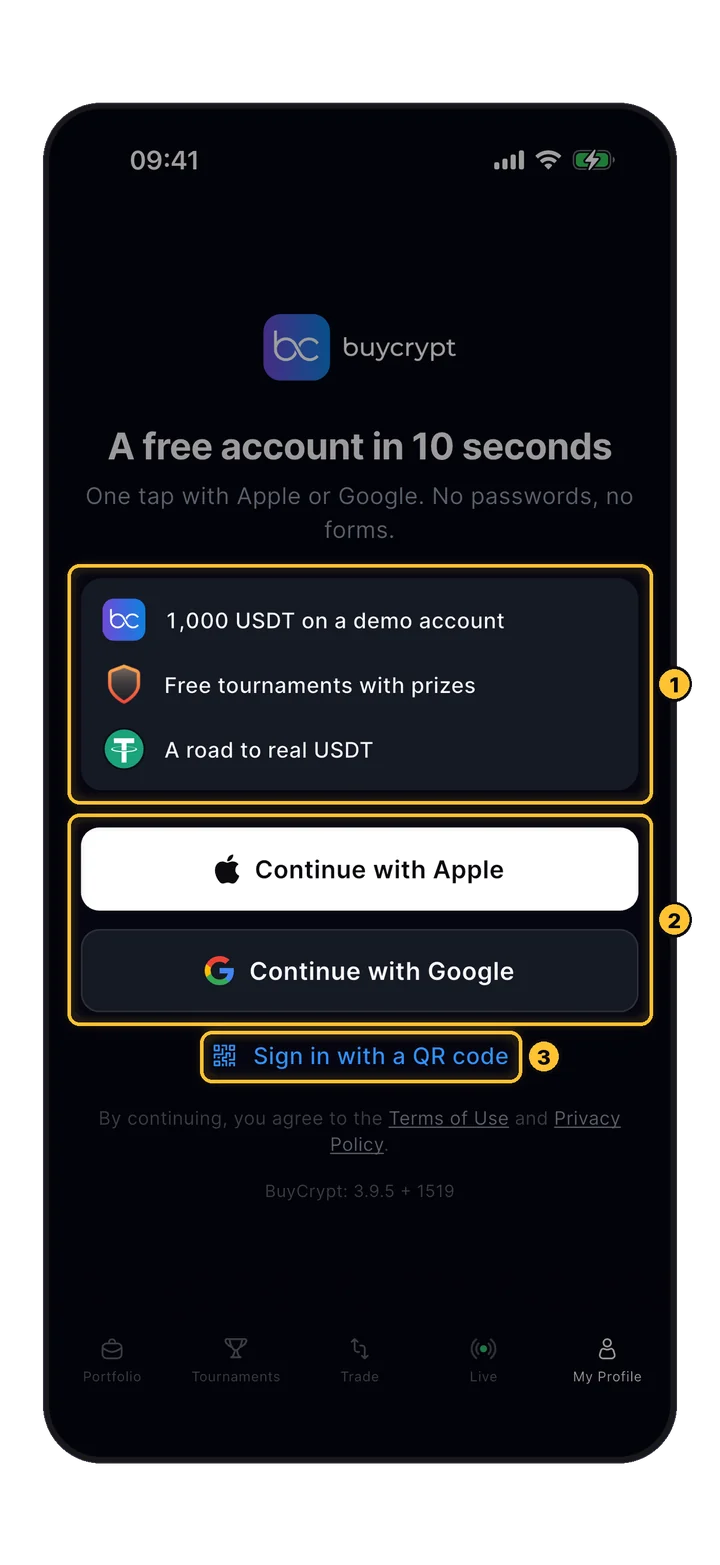
Open the app, head to My Profile, and sign in with an Apple ID or Google ID. No email/password forms, no KYC for qualifiers.

BuyCrypt login screen with Apple, Google, QR options
🔴 Red box · Login options
On the login screen, choose one of three methods: Apple ID, Google ID, or QR code for web-to-app pairing. Tap the button that matches your preferred account.
Google OAuth account selector
🔴 Red box · Account selector
Confirm the sign-in via your chosen provider (Google shown here). Pick the account you want associated with BuyCrypt, then you'll land directly on the Portfolio screen.
02 · Portfolio

Two tabs. Everything you own.

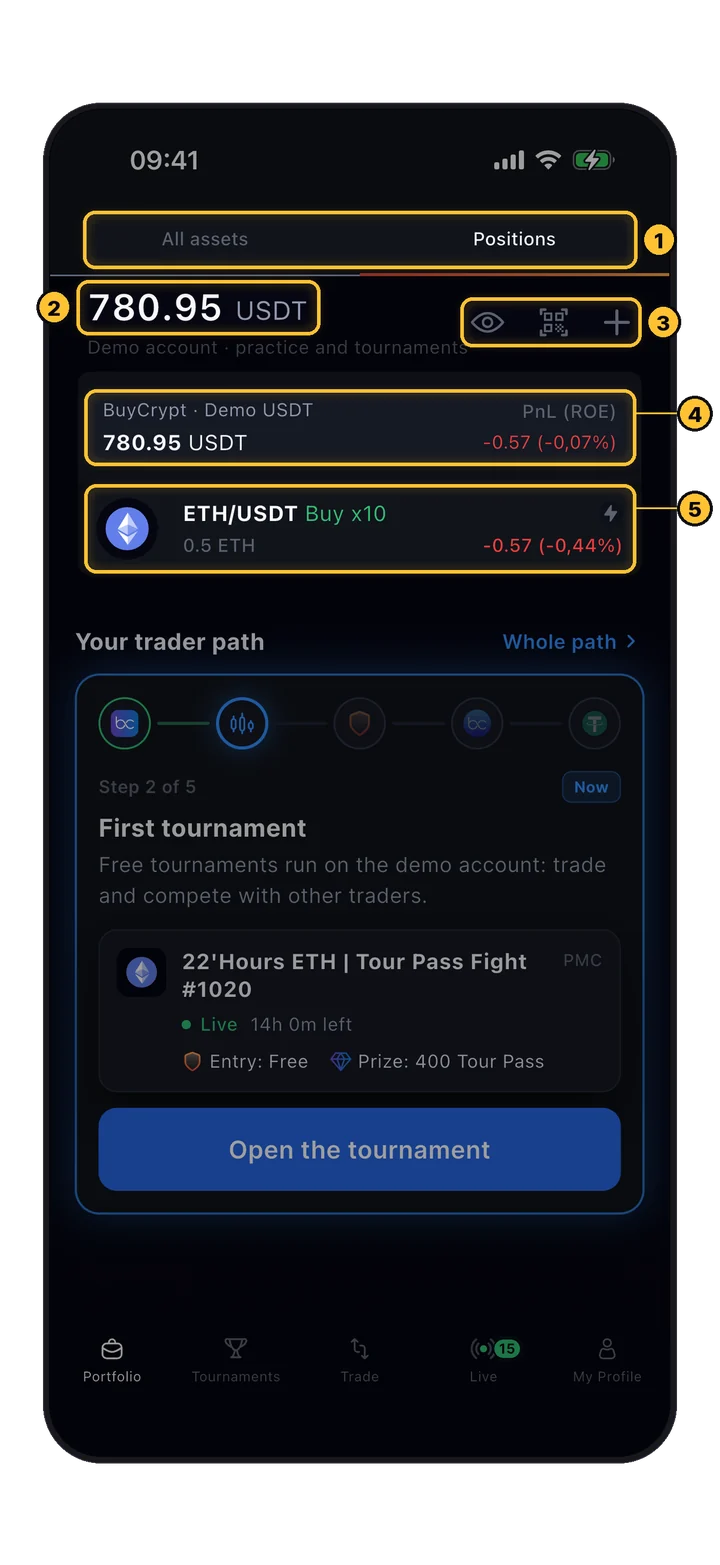
The portfolio screen splits your holdings into two dimensions: spot assets and open positions. Tournament balances and prize USDT appear here too.

💼
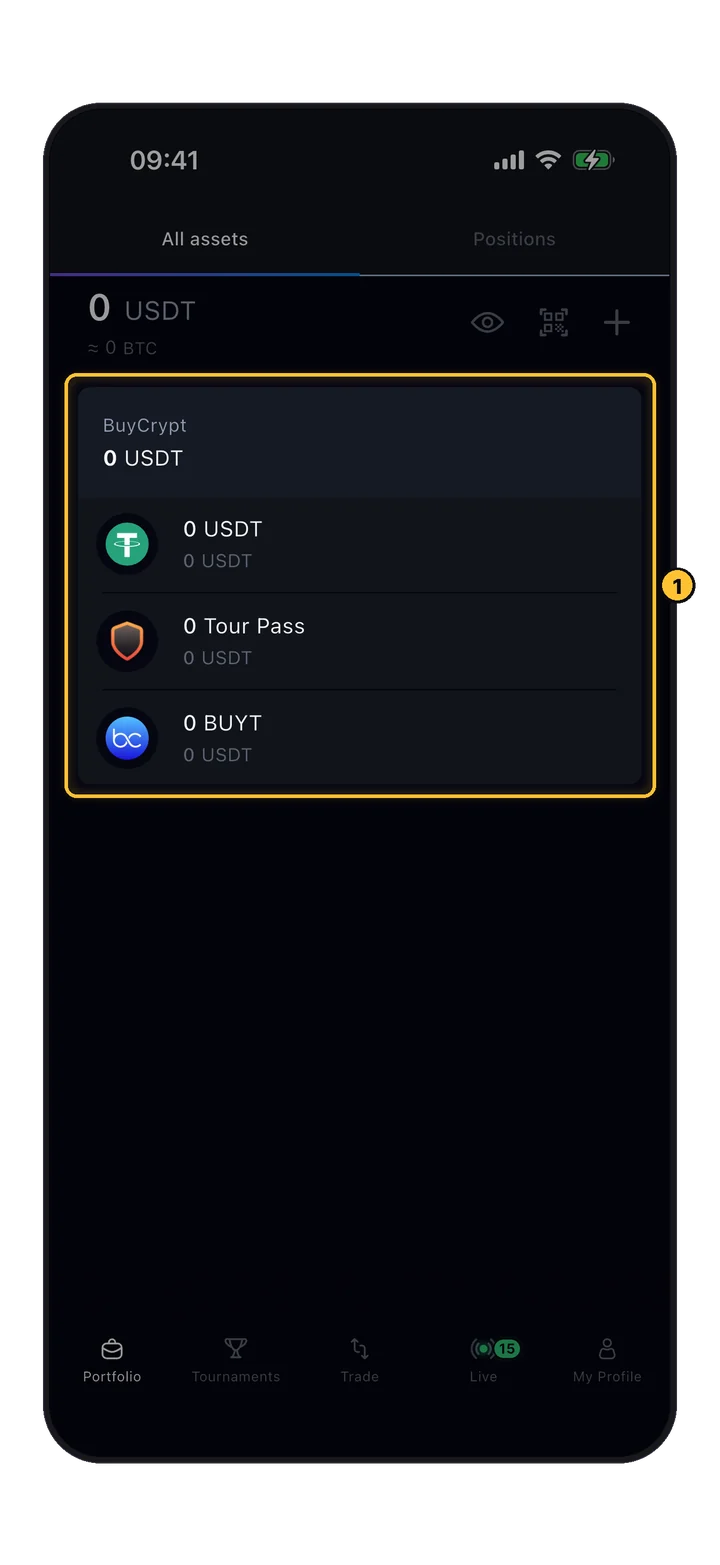
All Assets

Spot balance, every exchange.

Shows spot assets across all connected API keys. Prize USDT from tournaments, demo accounts, and real connected exchange balances — all in one place.

📈
Positions

Open trades, live PnL.

All your open positions with their current PnL (profit/loss). Updates in real time so you can monitor risk as the market moves.

03 · Trade screen

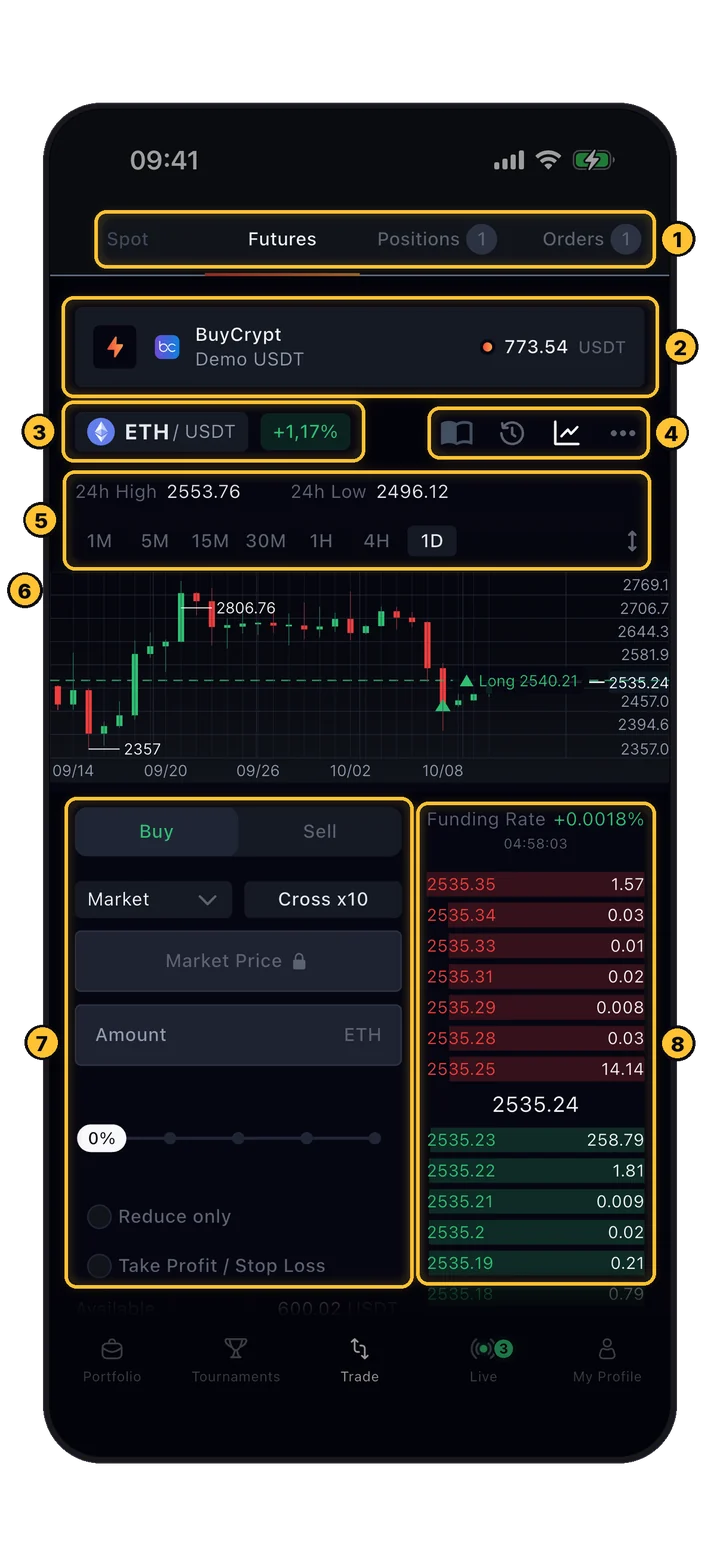
Four zones. One screen.

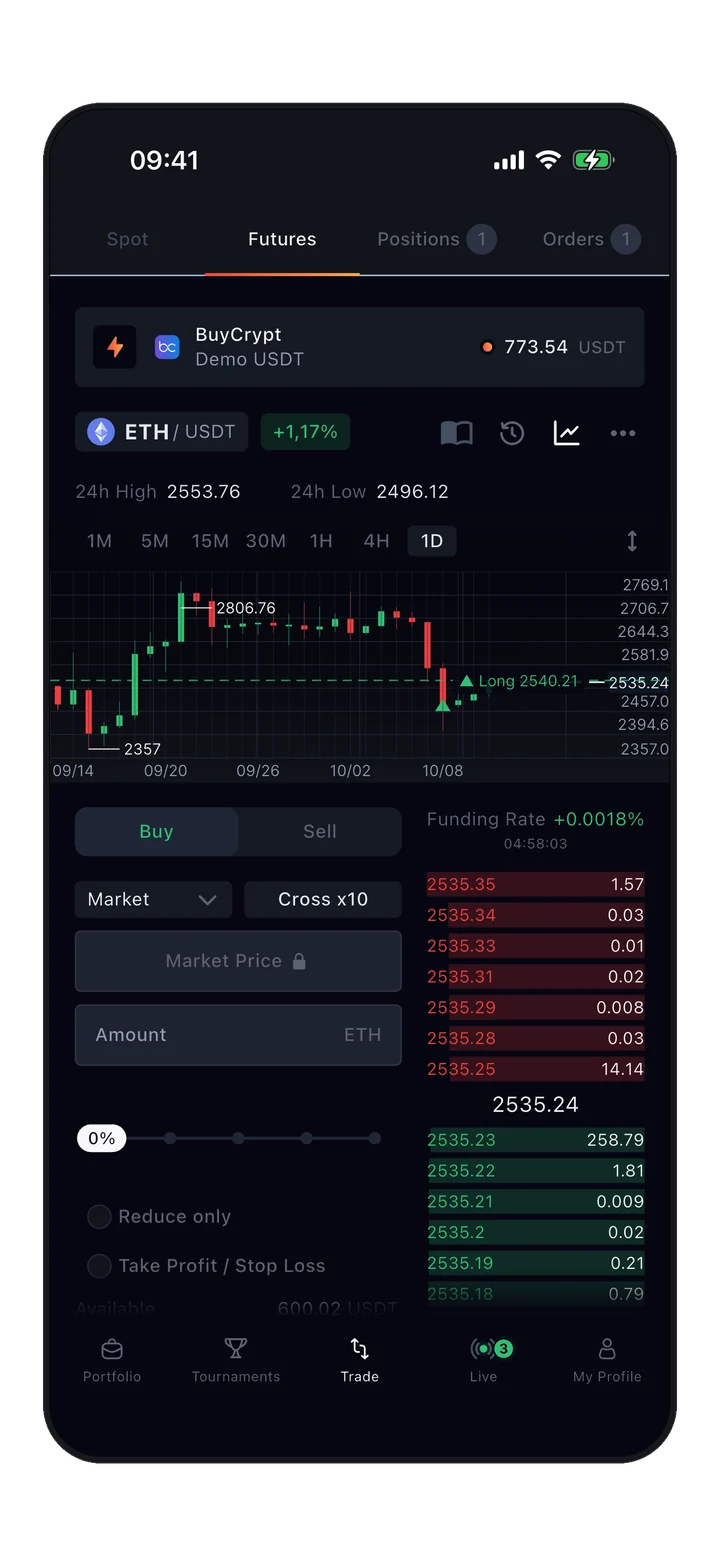
The trading terminal splits into four functional zones. Learn the layout once — it's the same on every pair, every exchange.

Trading UI: general menu and price chart
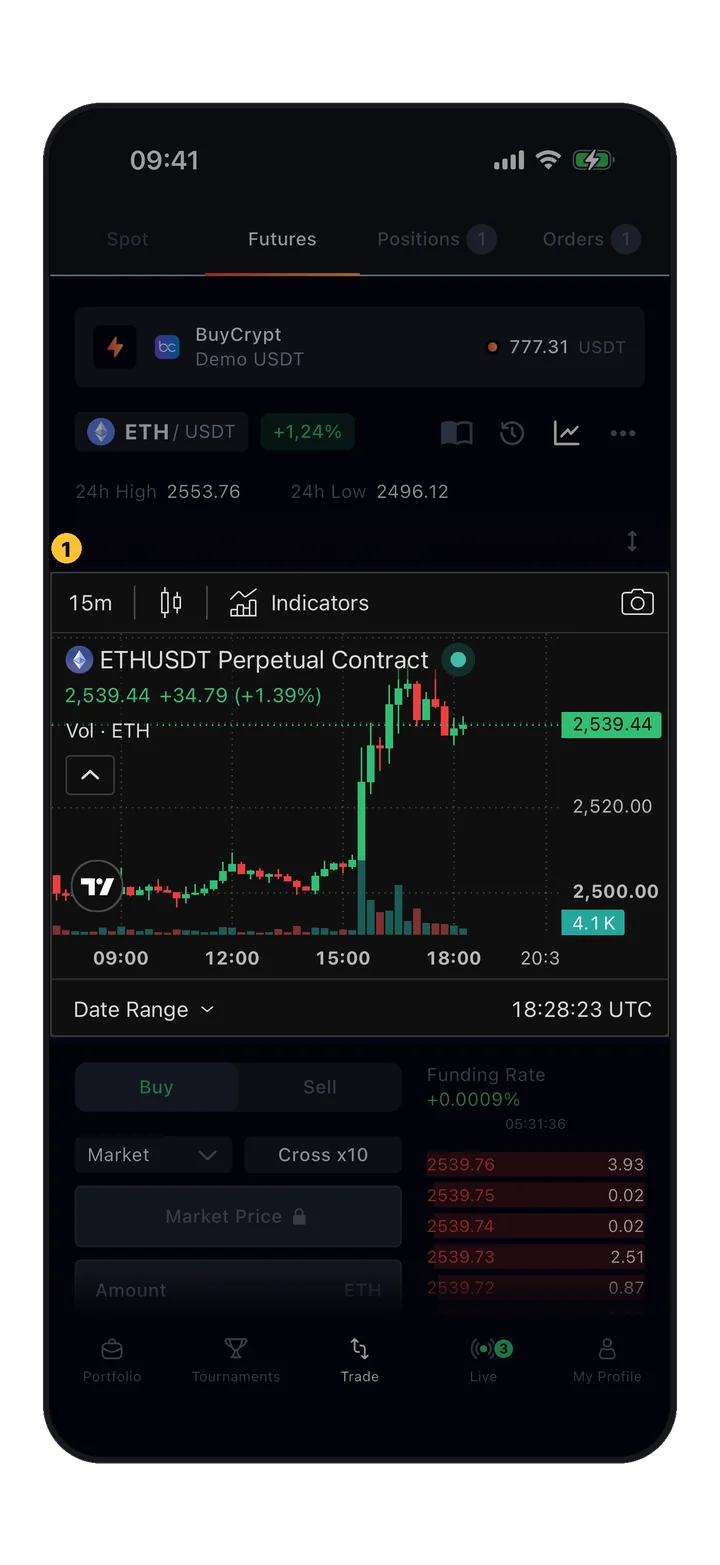
🔴 Red boxes · Zones 1 and 2
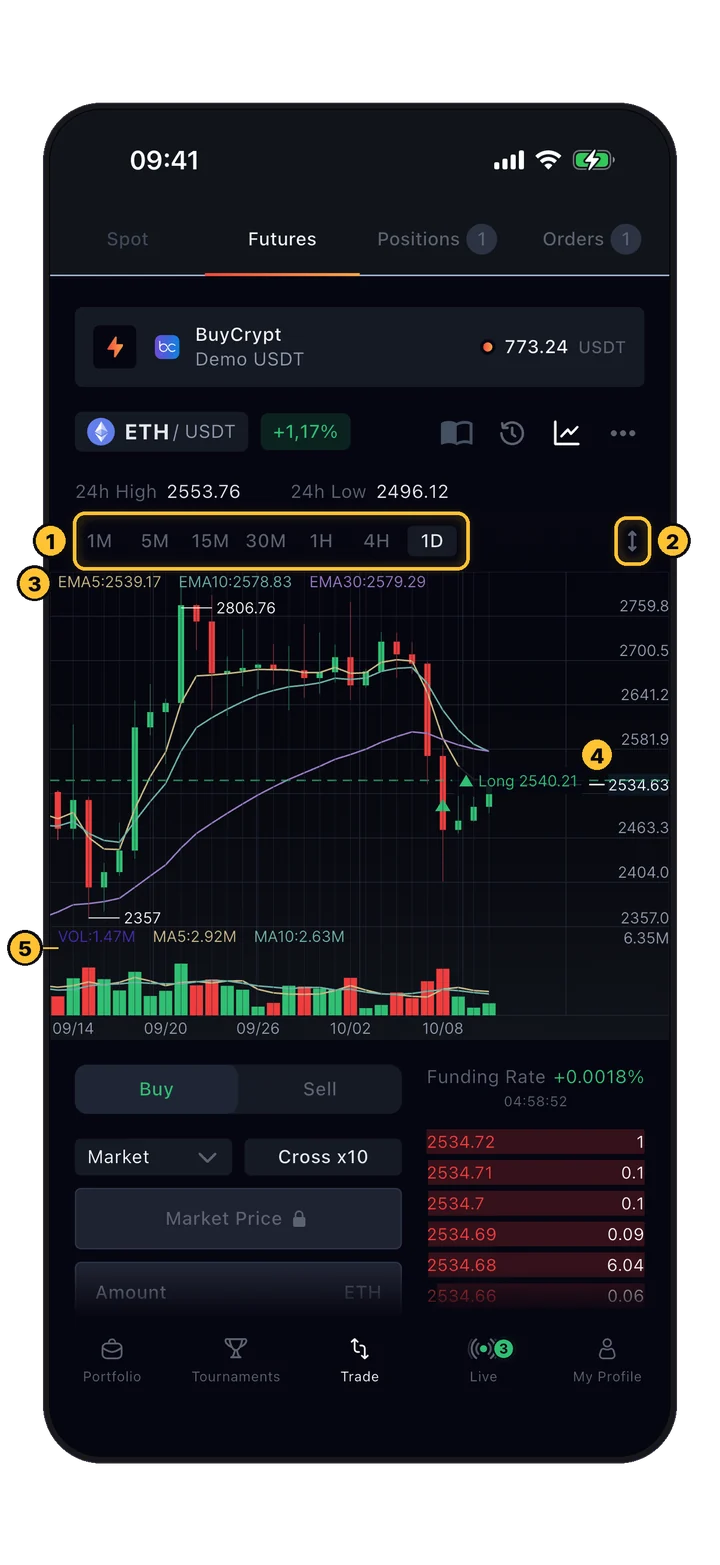
The top zone (1) is the general menu: Spot/Futures toggle, Positions/Orders counters, and trading key selector. Below it sits the Price chart (2) with timeframes (1M, 5M, 15M, 30M, 1H, 4H, 1D).
1

General menu

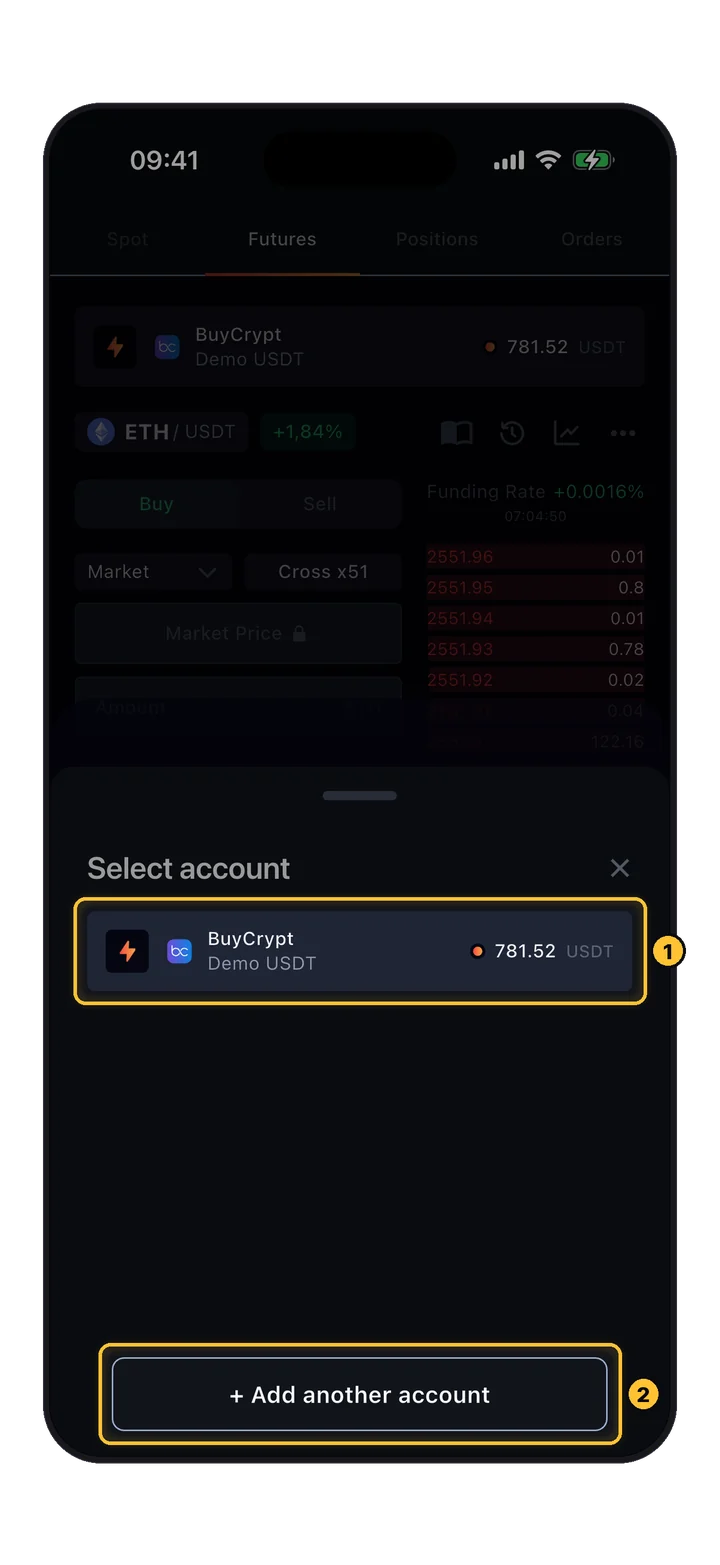
Top of screen. Switch between Spot or Futures, see Positions/Orders badges with counts, and select the trading key if you've connected multiple exchanges.

2

Price chart

Live price and candles. Switch timeframe at the top (1-minute through 1-day). 24h high/low shown above. This is where you read the market before placing anything.

💡 Tip

The price chart is just for reading the market — you don't place orders by tapping candles. All order entry happens in zone 3 below.

3

Order settings

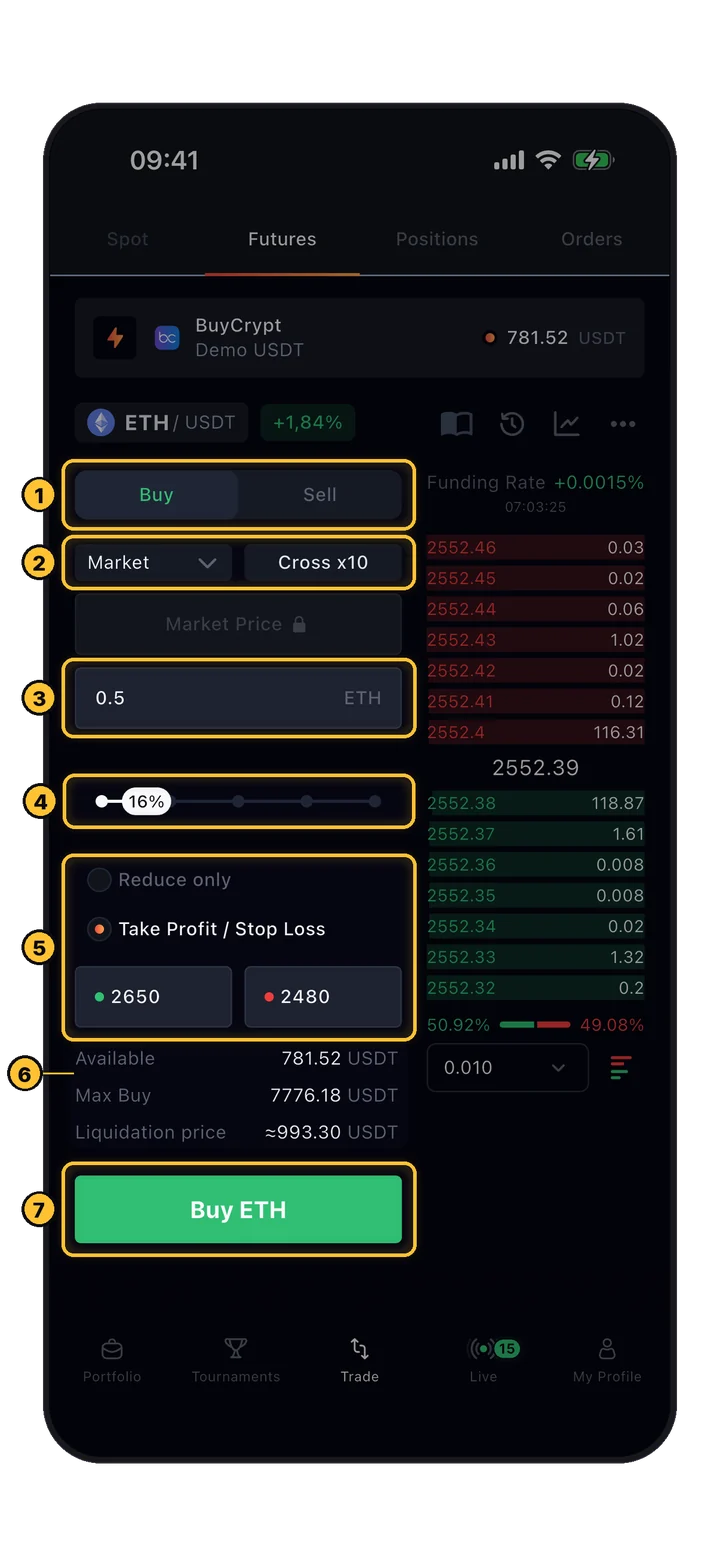
Where orders get placed. Pick Buy or Sell, set order type (Limit, Market, etc.), leverage (Cross 100x), price, and amount. Toggles for Reduce Only and TP/SL live here too.

4

Order book

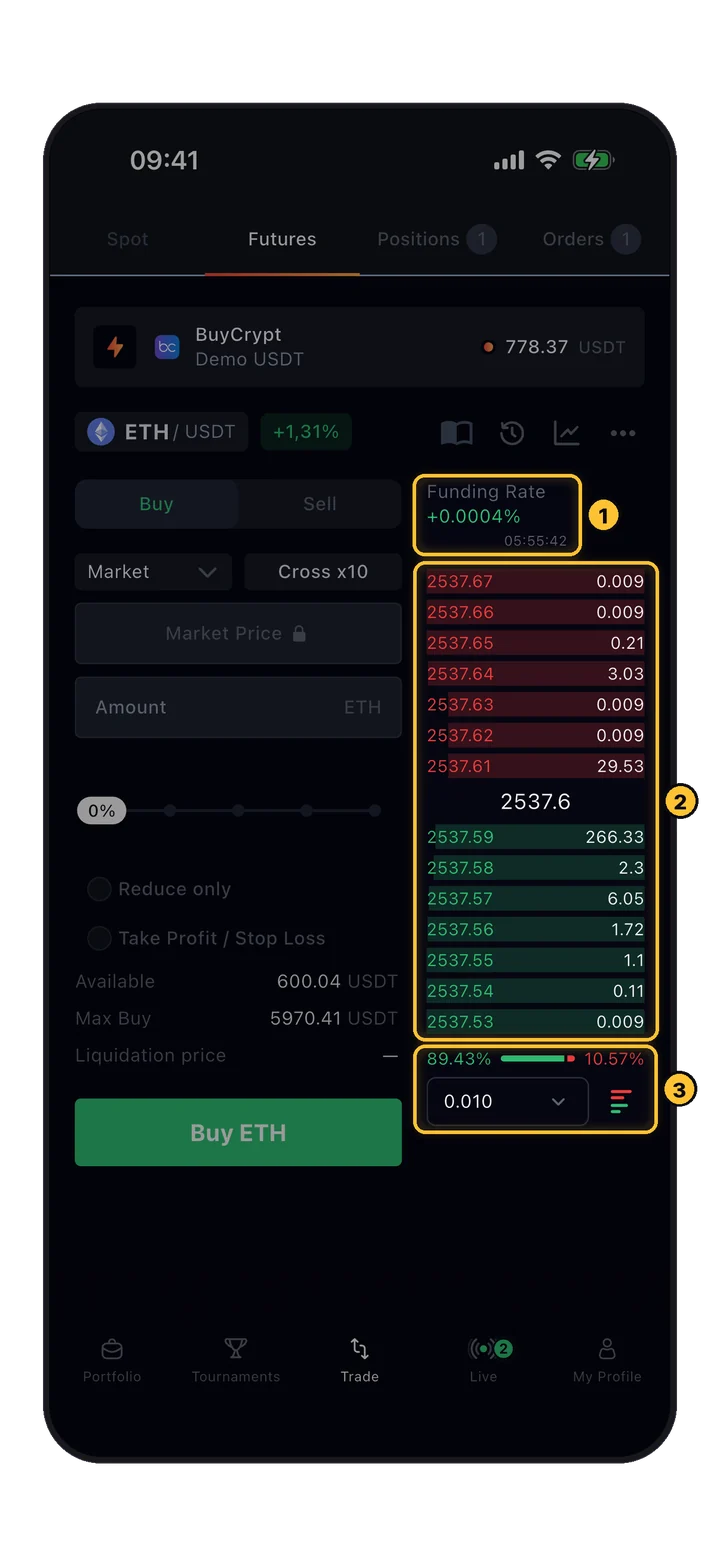
Live depth. Red rows = active sell orders (asks), green rows = active buy orders (bids). Shows price + size at each level. Funding rate sits at the top.

⚠️ Heads up

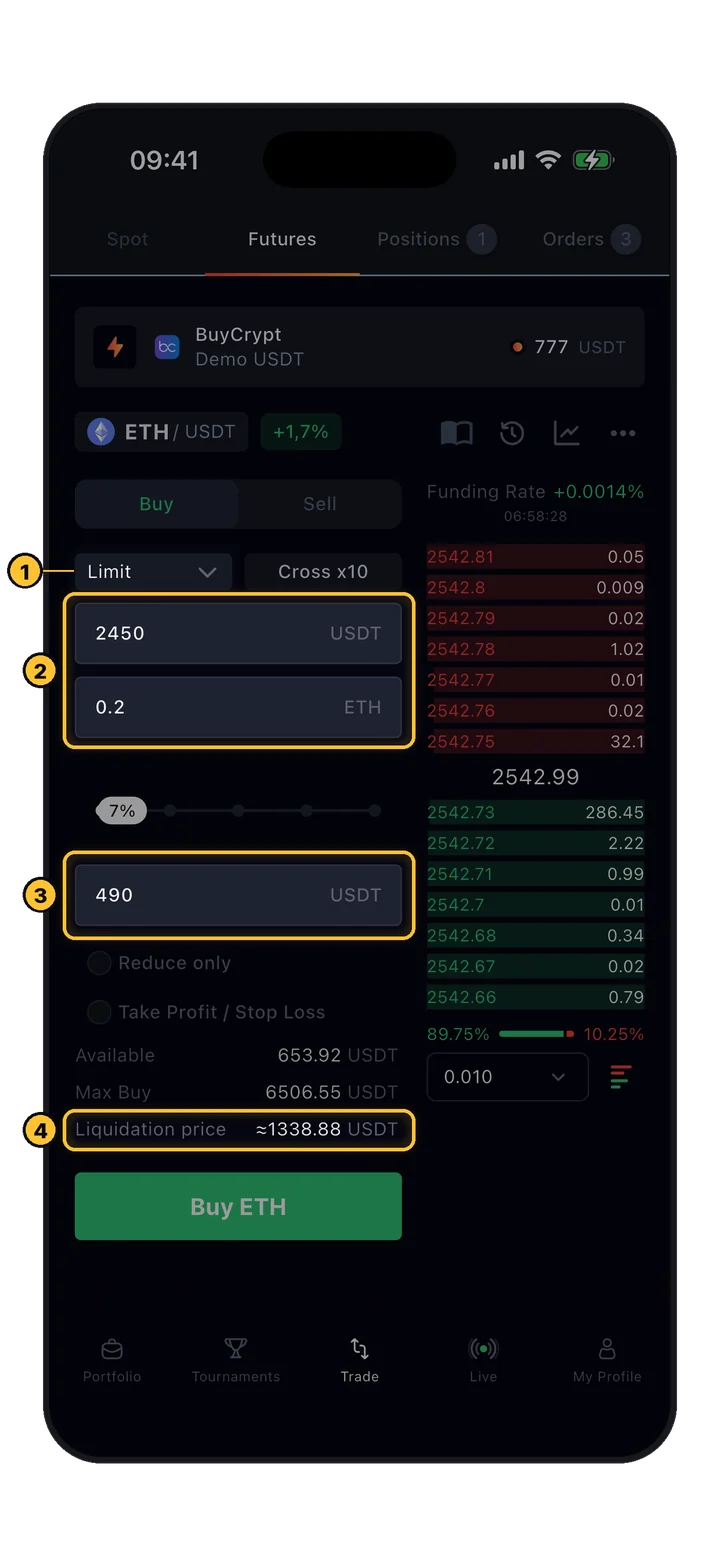
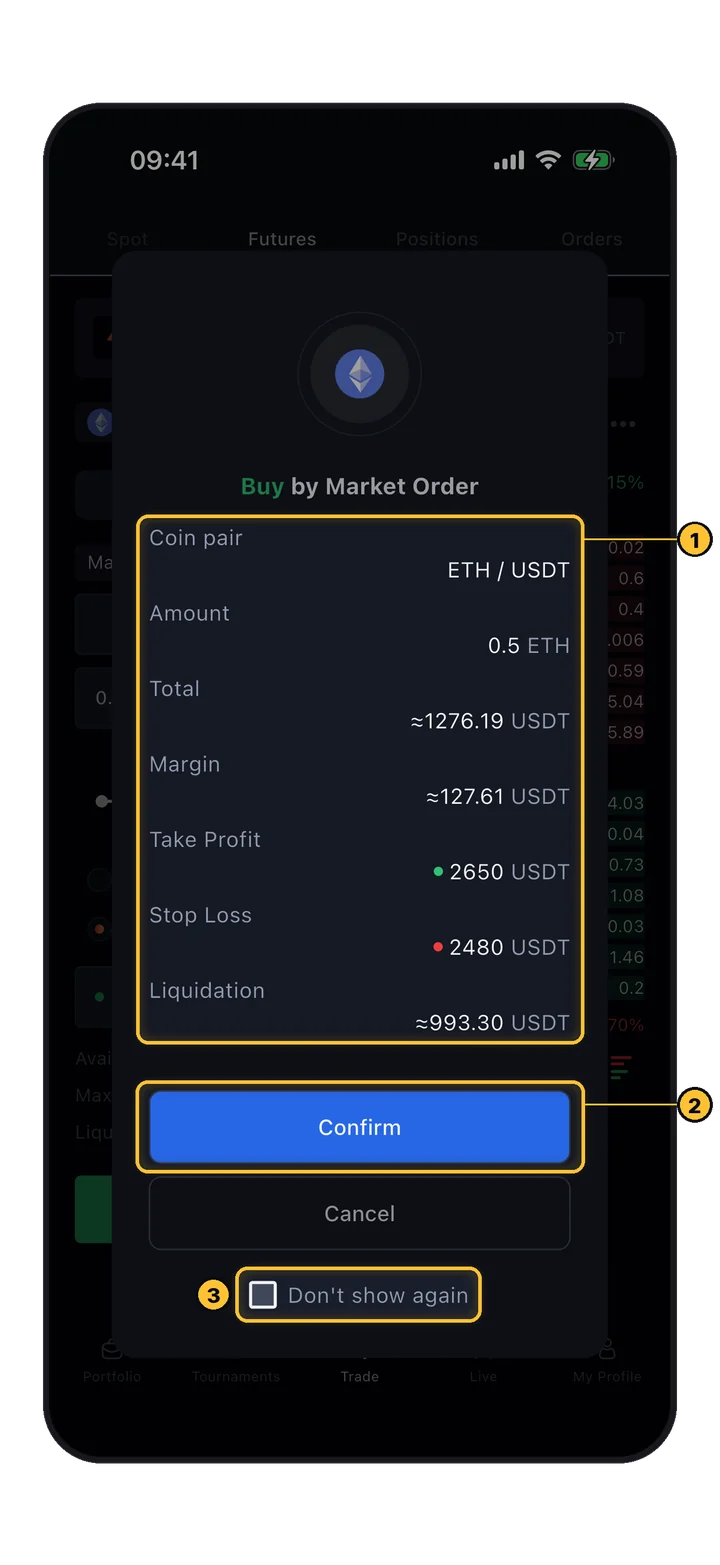
The Available / Max Buy / Liquidation price fields below the order form auto-update as you change leverage and amount. Always check the Liquidation price before confirming.

Trading UI: order settings and order book
🔴 Red boxes · Zones 3 and 4
Order settings (3) on the left: Buy/Sell toggle, Limit type, Cross 100x leverage, price, amount, Reduce only, TP/SL. Order book (4) on the right: live depth with red asks above, green bids below, current price in the middle.
04 · Leverage

Scale your exposure. Know the tradeoff.

Leverage multiplies both profit and loss. BuyCrypt lets you adjust it manually — up to 100x. Higher leverage = smaller margin of error before liquidation.

Leverage button in order form
🔴 Red box · Cross 100x button
In the order input field, tap the current leverage level (default Cross 100x). This opens the Mode and Leverage bottom sheet where you can change it.
Leverage slider: 1x-100x with Confirm button
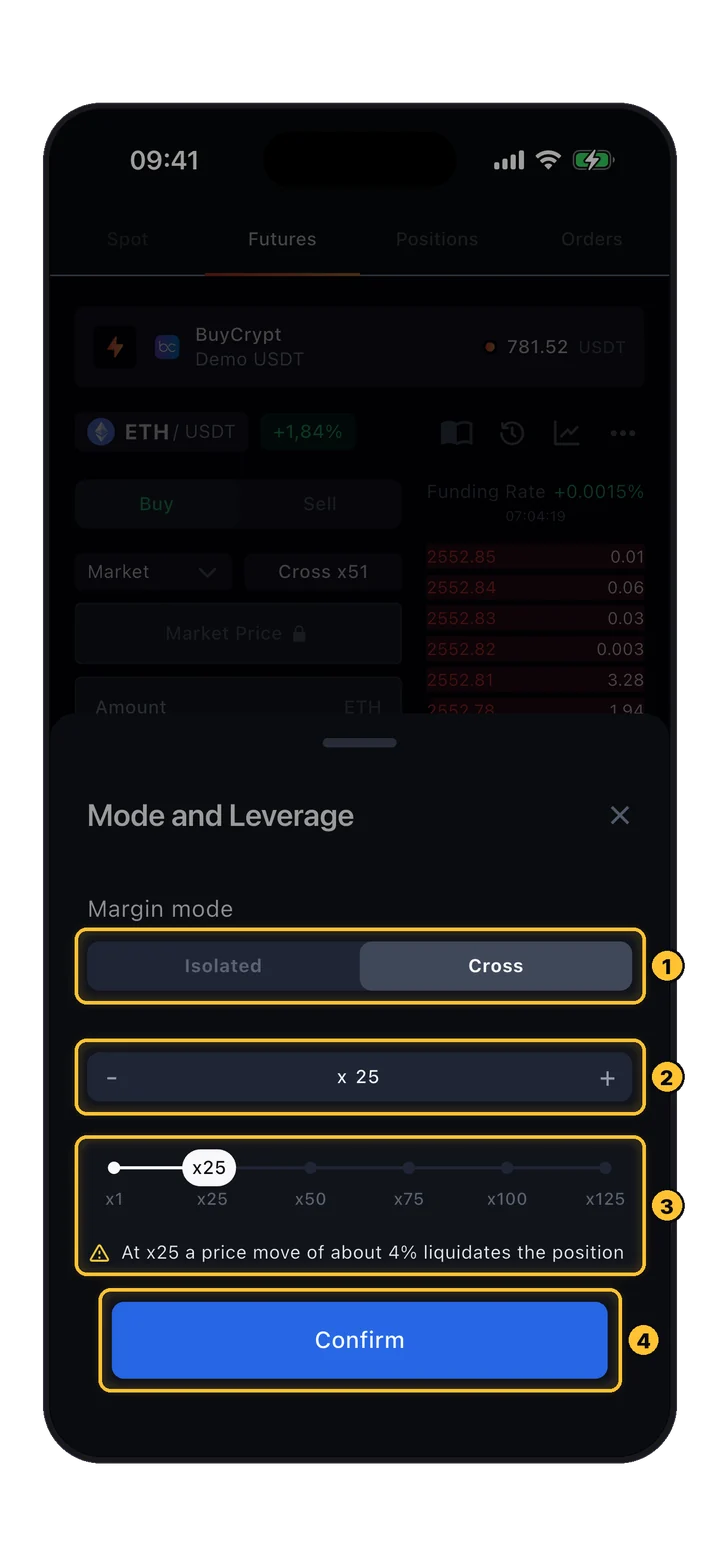
🎚 Mode and Leverage sheet
Choose your Margin mode (Cross shown), then drag the slider between 1x and 100x — or tap +/- for precise steps. Presets: 1x, 20x, 40x, 60x, 80x, 100x. Hit Confirm to apply.
⚠️ Position size & leverage are linked

The larger the position, the smaller the available leverage, and vice versa. This is an exchange-level constraint to cap systemic risk.
🚨 Higher leverage = higher liquidation risk

At 100x leverage, a 1% adverse move wipes your margin. At 10x, it takes 10%. Always assess your leverage and your stop-loss placement before entering.

05 · Pricing

Mark price vs Last price.

Two price feeds, two jobs. Knowing which one matters when saves you from surprise liquidations.

Dimension
💱 Last Price
🛡 Mark Price
What it is
Price of the most recent trade
Price calculated from multiple exchanges + funding data
Used for
Realized PnL (closed positions)
Liquidation & unrealized PnL (open positions)
Volatile?
Yes — moves trade by trade
Dampened — resistant to manipulation
Purpose
Shows real market activity
Prevents single-exchange wicks from liquidating healthy positions
💡 Why this matters

If you see Last Price spike 2% below your liquidation line for a second — don't panic. Mark Price didn't move that much because it's smoothed across multiple exchanges. Your position survives.

06 · Order types

Five ways to place an order.

Each order type answers a different question: "buy now", "buy only at my price", "buy when price breaks a level". Pick the one that matches your intent.

💵
Default

Limit Order

Executes when market reaches your set price. Buy below market / sell above market.

📈
Instant

Market Order

Executes immediately at the best current price. For when timing beats price.

Conditional

Limit Stop

Activates a limit order when stop price is hit. Breakout + price control.

🔔
Conditional

Market Stop

Fires as a market order at stop price. Fast exit, price slippage possible.

🛡
Exit

Limit Take Profit

Locks in gains when target price is hit. Set it and forget it.

Order type dropdown closed, Limit shown
🔴 Limit dropdown
The order type selector sits in the order form. Default is Limit — tap to change.
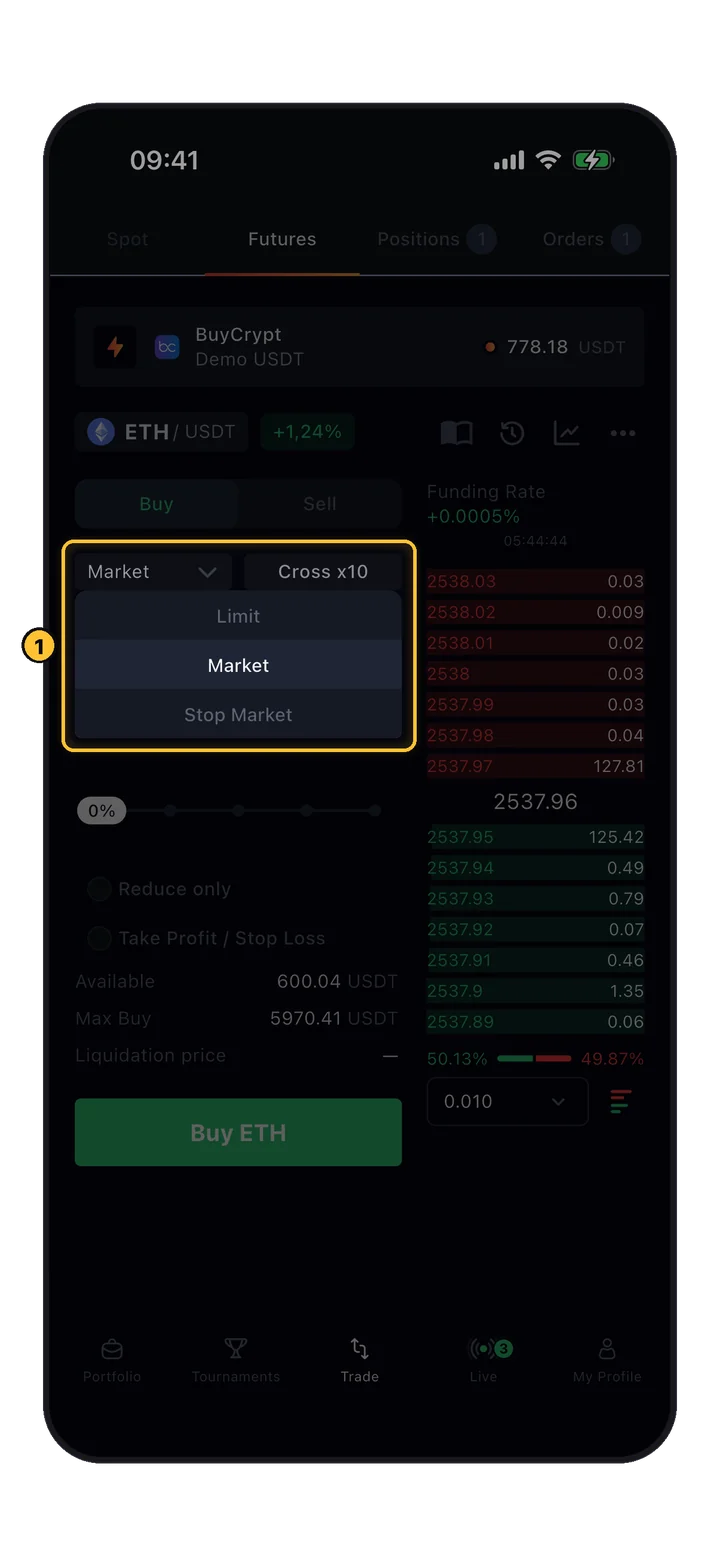
Order type dropdown open: Limit/Market/Stop Market
🔴 Dropdown open
Three core choices: Limit, Market, Stop Market. Tap to select.
Orders tab with 1 pending limit order
🔴 Pending order card
Orders tab: pending BTC/USDT Sell Limit @55000.0 waiting for price. Cancel button top-right.
07 · Essentials

Three concepts worth knowing.

Calculator, funding rate, liquidation — mechanics that every futures trader should have internalized.

🧮

Calculator

Built-in tool to preview PnL, target price, and liquidation price before you commit to a position. Play with scenarios without real capital on the line.

💸

Funding Rate

The mechanism that keeps perpetual futures pegged to spot. Longs pay shorts (or vice versa) periodically, based on how far perp price is from spot. Positive rate = longs pay.

❗️

Liquidation

Happens when your margin balance falls below the maintenance margin. To avoid it: monitor positions, set stops, and close in time. Don't let leverage eat you alive.

08 · Manage

Monitor. Adjust. Close.

Once you're in a position, the Positions tab is your command center. Every field that matters — at a glance.

Active position card with PnL
🔴 Red box · Active position
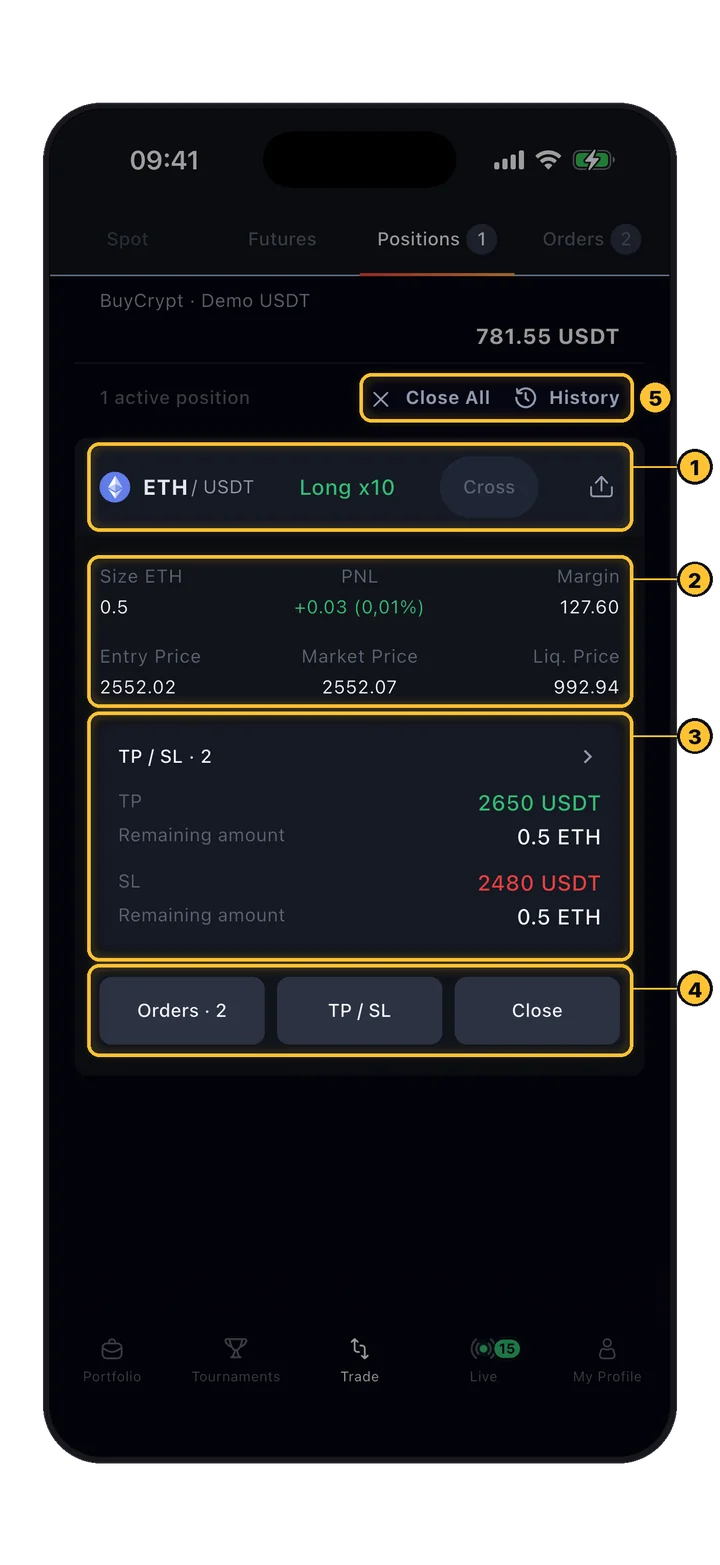
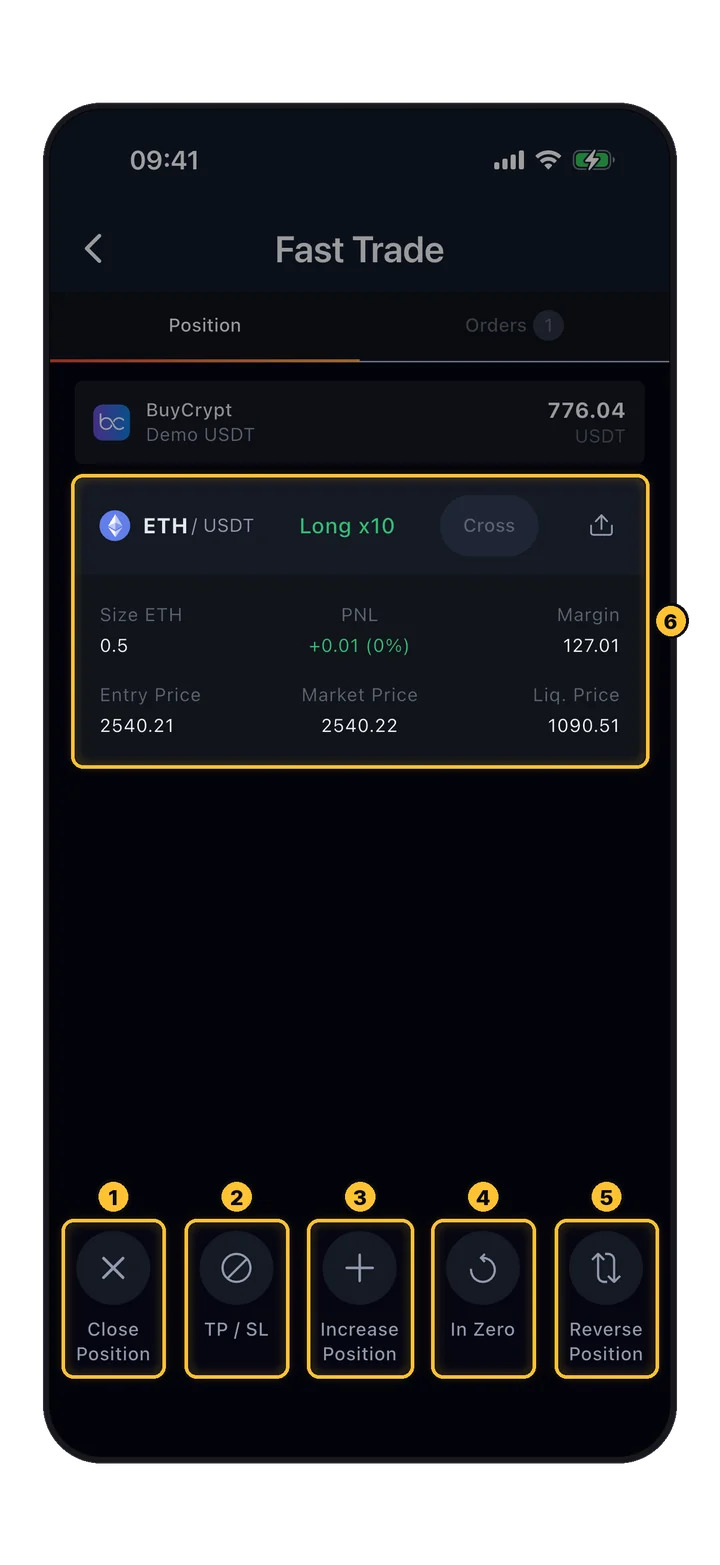
BTC/USDT Sell 100x — +759.45 USDT unrealized PnL (+12.61%). Fields: Size, PnL, Margin, Entry / Market / Liq. prices. Action buttons: Orders / TP/SL / Close.
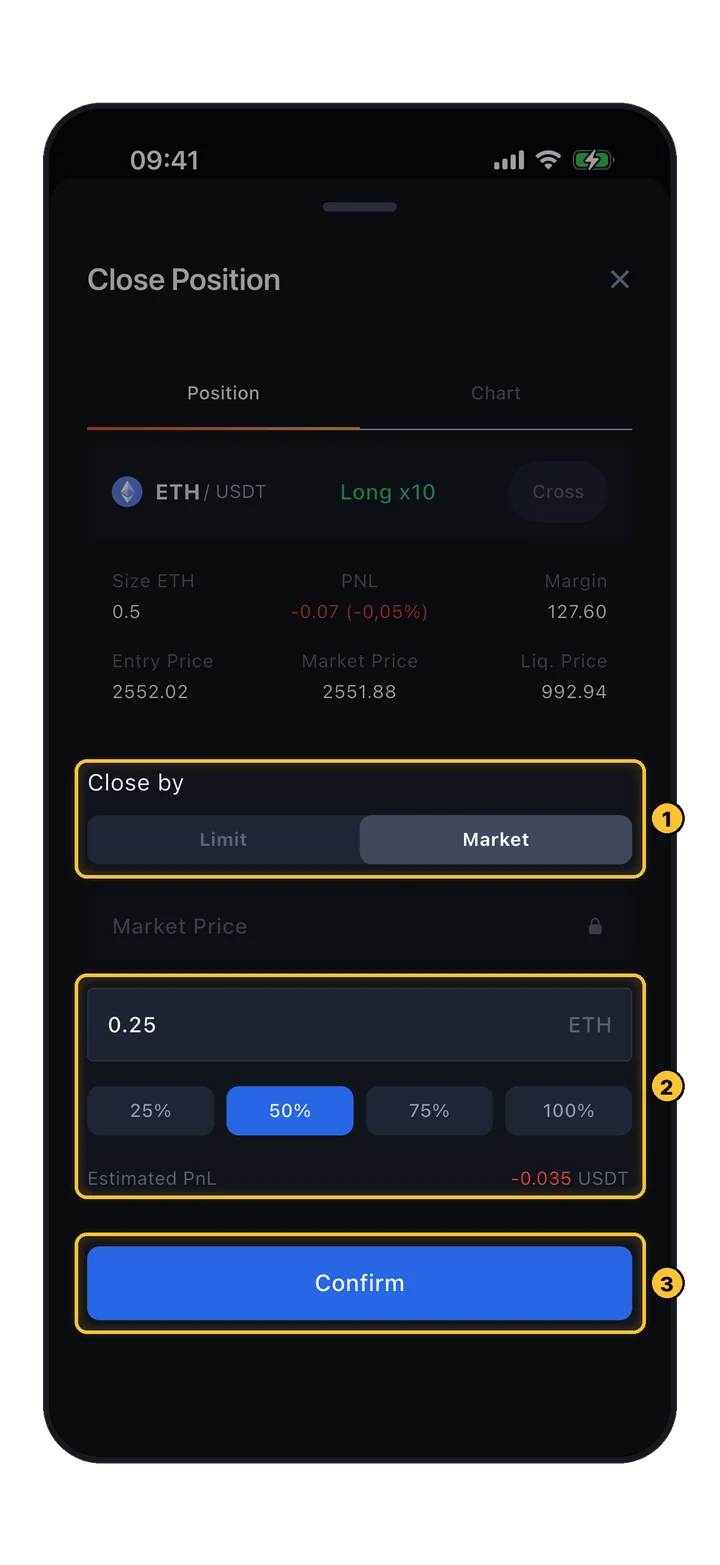
Close position sheet with Limit/Market and % buttons
🔴 Red box · Close by section
Tap Close → opens this sheet. Choose Limit or Market close type, set price/amount, or use quick 25 / 50 / 75 / 100% preset buttons to partial-close. Confirm to execute.

Every field on a position card

What each number means at a glance.

📏
Size
Contract size in base currency (e.g. 14.007 BTC)
💰
Unrealized PnL
Current profit/loss if closed now
🔒
Margin
Collateral locked for this position
🎯
Entry Price
Average price you opened at
📍
Market Price
Current price right now
💥
Liq. Price
Price at which position gets liquidated
Start trading

Open the terminal.

Account created. Interface understood. Leverage calibrated. Open the app and place your first paper trade in a free tournament — zero real risk, maximum learning.

Free to start · Practice in tournaments · No real funds at risk in qualifiers
Keep reading

Related guides.

Live trader positions
What traders are doing right now
Full markets view →
Loading positions…