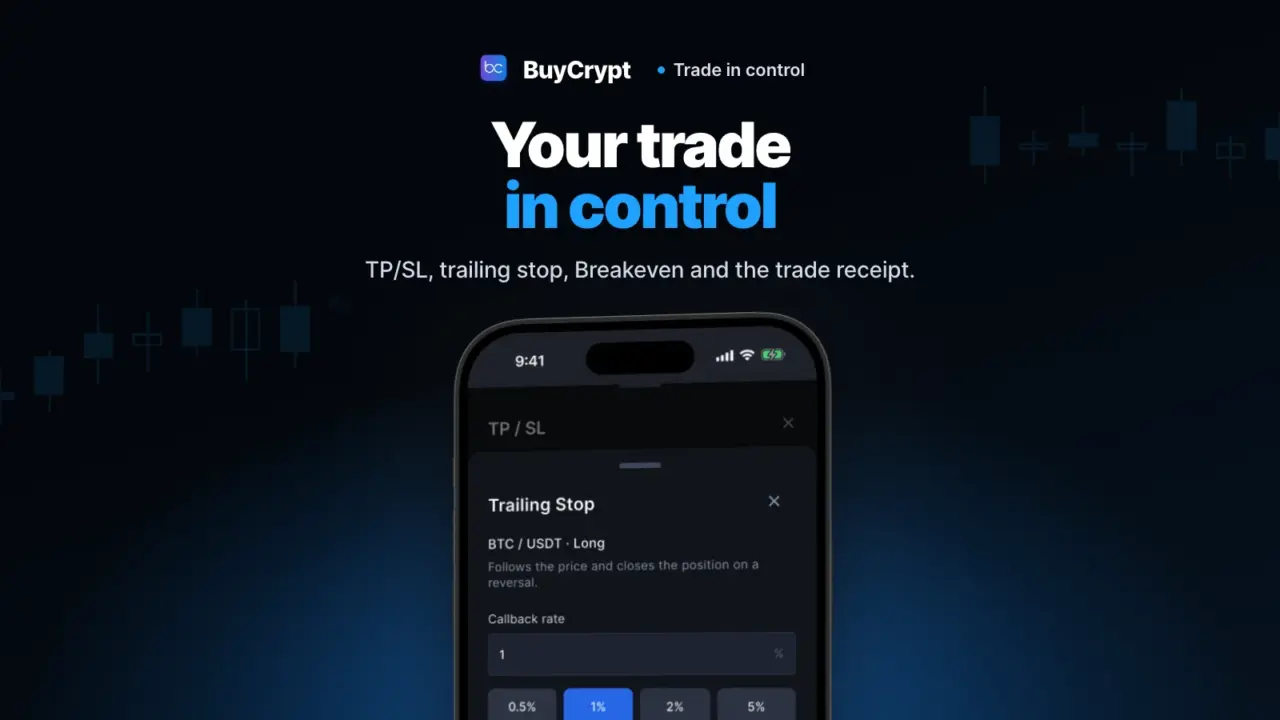
Opening a trade is easy. The exit is the hard part. In BuyCrypt you set your exits early, and a stop can follow the price for you. After you close, you see where the result went.
All of this works on the demo and tournament accounts: virtual USDT, real prices. Practise there first. New to orders? Start with the terminal chapter.
One screen for the whole position
Close, protect or flip a trade from one screen
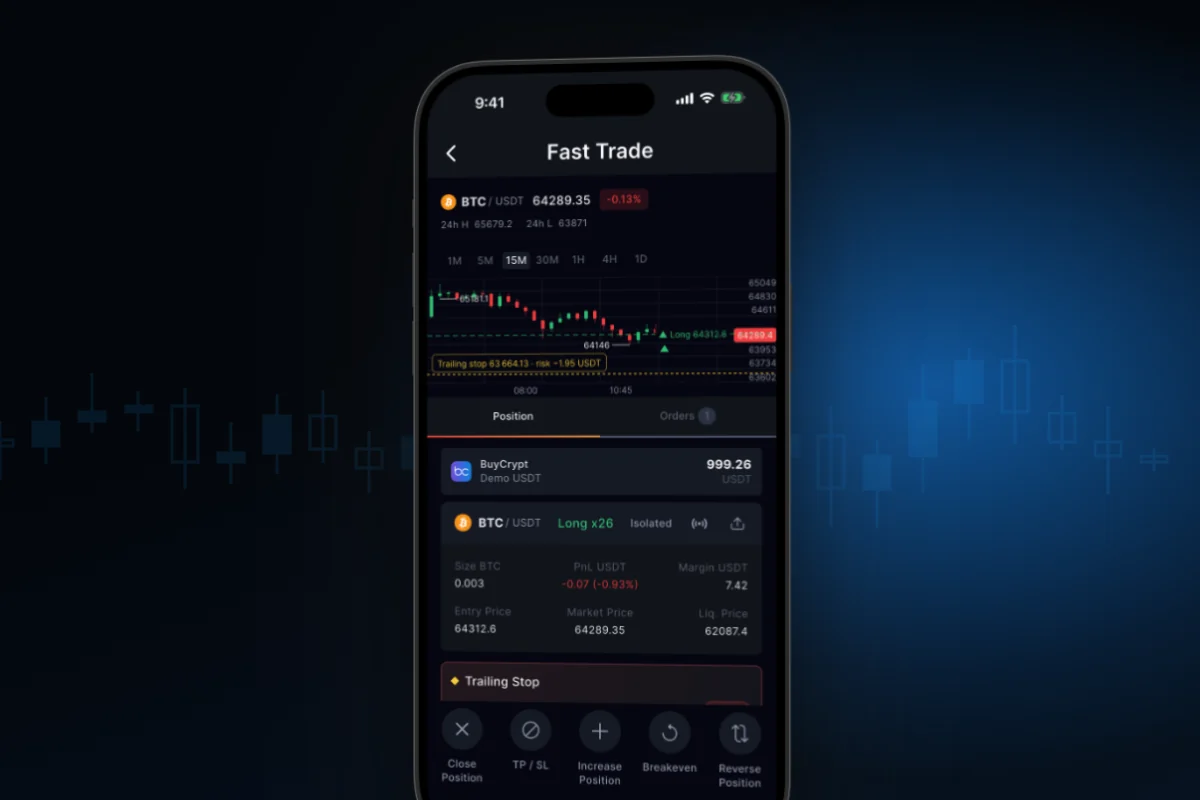
What it is. Fast Trade is the screen of one open position. It has the price, the chart, the orders and a row of actions. In the Orders tab each stop, take-profit and limit close shows a “≈ ±amount” estimate: what it gives or takes at its price (in the app since 3.9.6).
Why. Every action for this trade is in one place. You do not open new trades here.
How to start
- Open Trade, then the Positions tab.
- Tap the header of a position card. Fast Trade opens.
- Pick an action: Close Position, TP / SL, Increase Position, Breakeven or Reverse Position.
- Check the numbers in the window and tap Confirm.
- Open the Orders tab. A stop or a take-profit card shows what it will cost or bring. No maths in your head.
Where: the app (Trade → Positions → card header; it also opens from Portfolio and from a position push) and the web terminal (the position row under the chart). The order result is an estimate, before slippage. You open new trades in the order form, not here.
Set your profit exit and your loss exit early
Take part of the profit early, keep the rest under a stop
What it is. The TP / SL window puts a take-profit and a stop-loss on an open position: on the whole size or on a part.
Why. You decide while you are calm. Before you confirm, you see what each level gives or takes.
How to start
- Tap TP / SL on the position card.
- Whole position tab: type a price in the Take Profit and Stop Loss cards.
- Part tab: type the Trigger Price and pick 25, 50, 75 or 100%. The app writes “Fires as a take-profit” or “Fires as a stop-loss”.
- Read the Result after fees line and tap Confirm.
- The card now shows a “TP / SL · n” strip with the nearest levels, marked Profit, Loss or Breakeven.
Where: the app and the web terminal (TP / SL in the position row). You can also set a stop and a target before entry, in the order form: Set a stop and a target at entry.
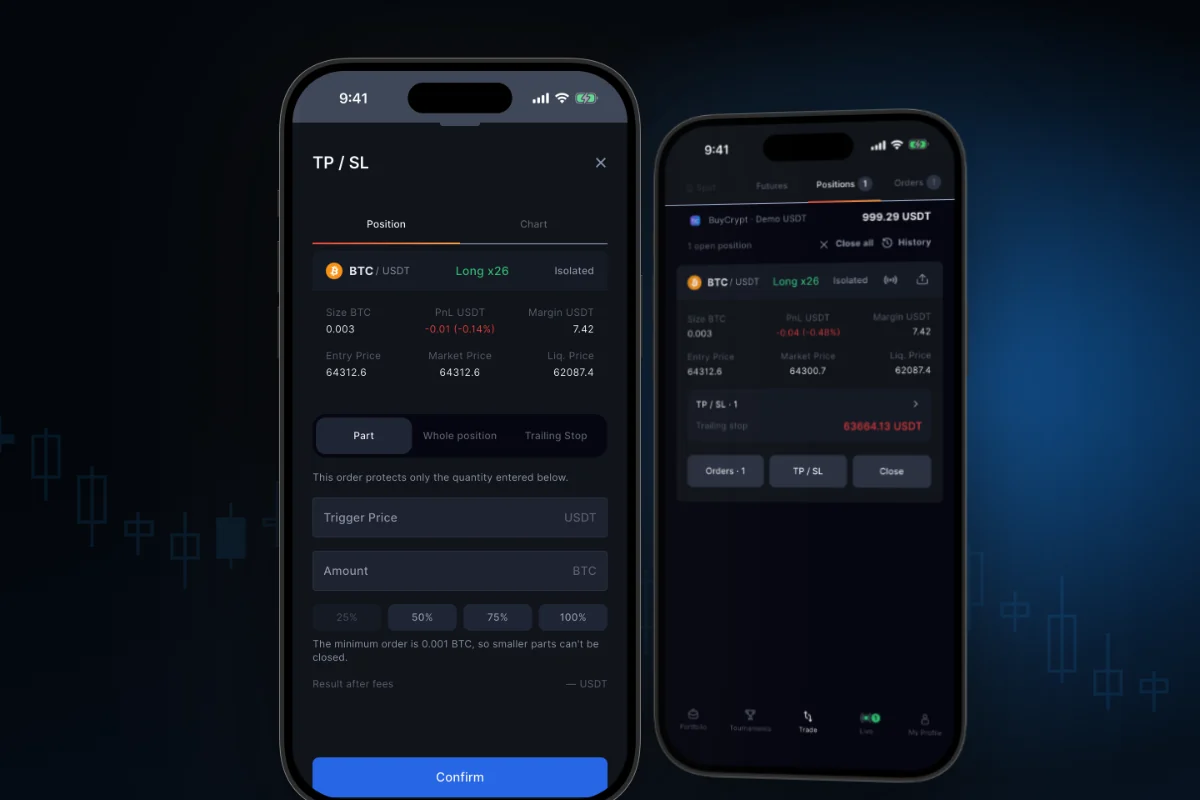
If your orders cover only a part, the card warns you: the rest has no protection.
A stop that follows the price
The trade stays open while the price goes your way
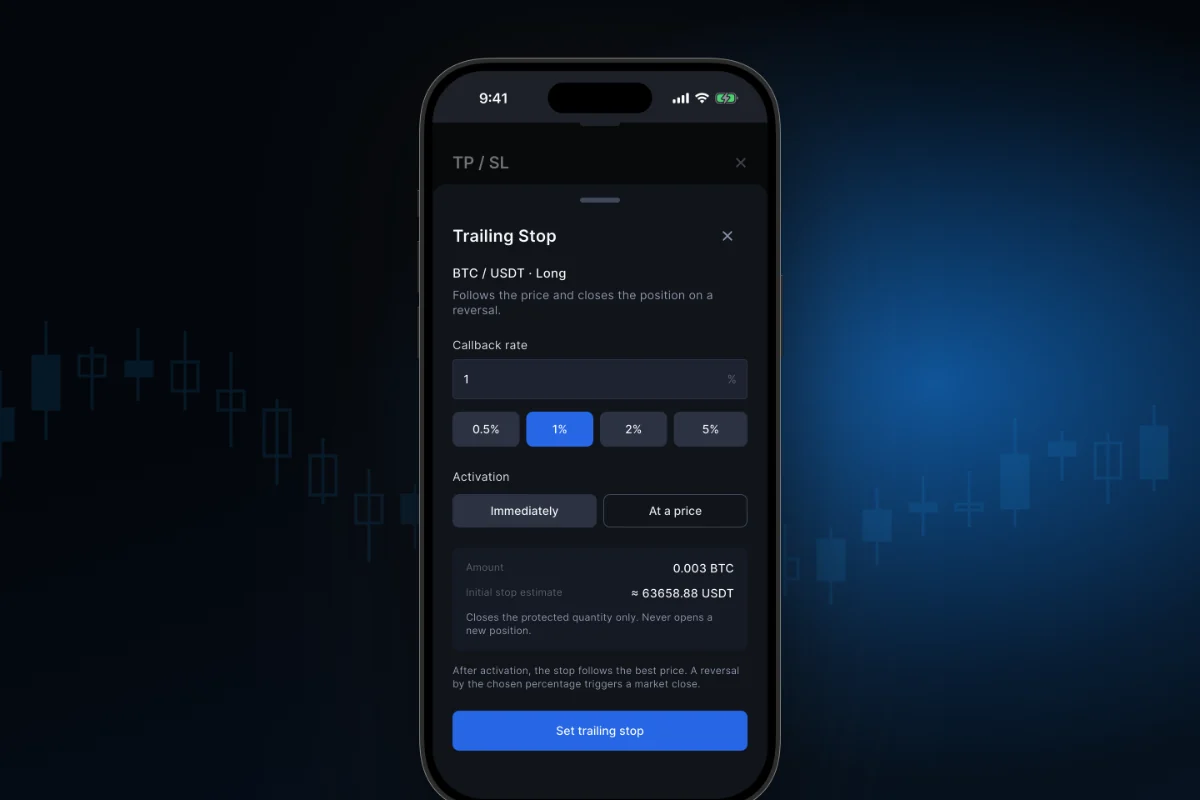
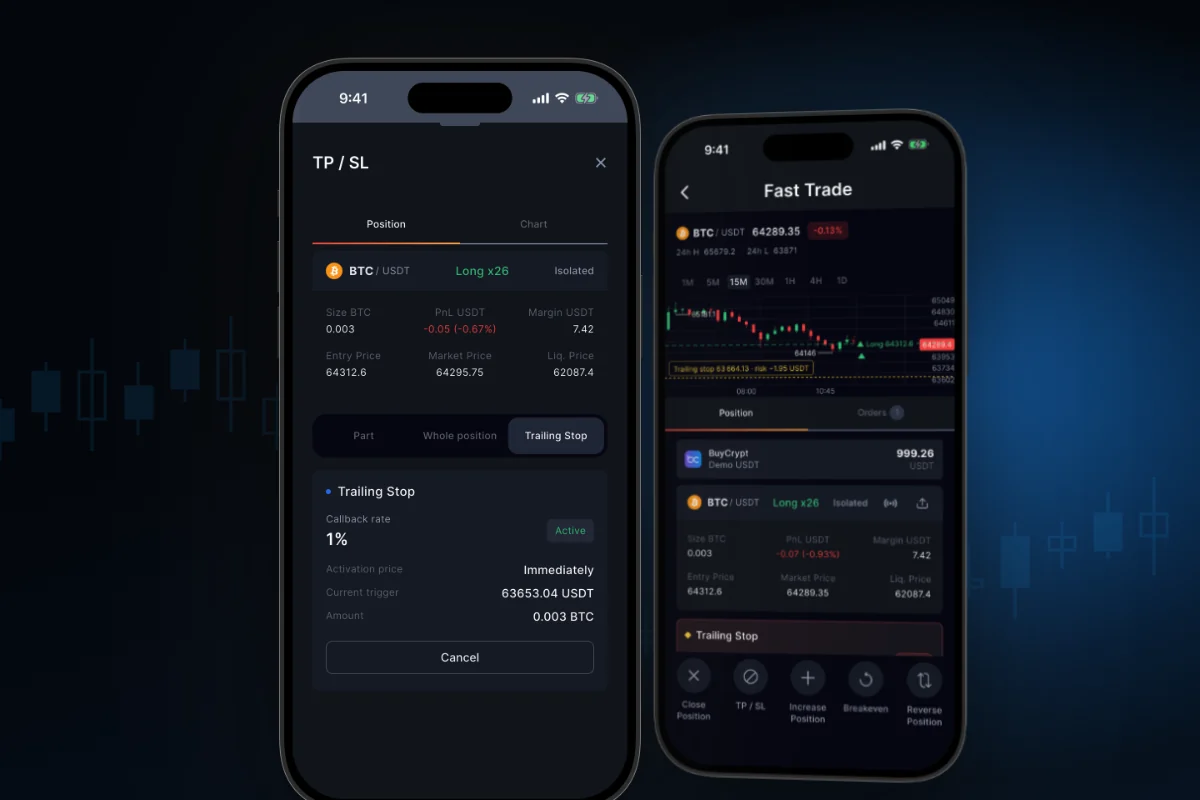
What it is. A Trailing Stop moves after the price while the price goes your way. When the price pulls back by your percent, the position closes at market.
Why. You do not move the stop by hand or watch the chart all day. A big pullback closes the trade.
How to start
- Tap TP / SL on the position card, open the Trailing Stop tab, tap Set trailing stop.
- Set the Callback rate: 0.5%, 1%, 2%, 5%, or your own value from 0.1% to 10%. The default is 1%.
- Choose Activation: Immediately, or At a price with an Activation price.
- Check the Initial stop estimate and tap Set trailing stop.
- The card shows Waiting for activation or Active. Tap Cancel to remove it.
Where: the app and the web terminal. It works on demo and tournament accounts, and on your own Gate, SunX and Hyperliquid accounts.
See how much the trade already holds
What it is. When the Trailing Stop is active, Fast Trade shows a scale (Entry, Stop, Price) and the result if the stop hits now. When the stop moves, a “↑ Trailed” mark lights up.
Why. No maths in your head. On the demo account a push tells you about important stop moves.
How to start
- Set a Trailing Stop and wait for the Active status.
- Open Fast Trade, then the Position tab.
- The block says “If the stop hits now”. After the stop passes your entry, it says “Locked in”.
- Read the Callback and To stop lines below.
- Tap the stop-moved push. This position opens.
Where: the app and the web terminal. The yellow stop line is only on the BuyCrypt chart.
Trade in profit? Remove the risk in one tap
The worst case is about zero
What it is. Breakeven puts a stop on the whole position at your entry price plus fees. If the price comes back, the trade closes near zero.
Why. The price went your way. In one tap you remove the risk of a loss on this trade.
How to start
- Wait until the price covers your entry and the fees. Before that the button is off.
- Open Fast Trade and tap Breakeven.
- Check Entry Price, Market Price and Stop Price.
- Tap Confirm. A stop-market order for the whole position appears.
Where: the app (Fast Trade → Breakeven) and the web terminal (position row → “⋯” → Breakeven). It is not a sure zero: when it fires, a market order is sent.
Changed your mind? Flip the position
Close and open the other way with one confirm
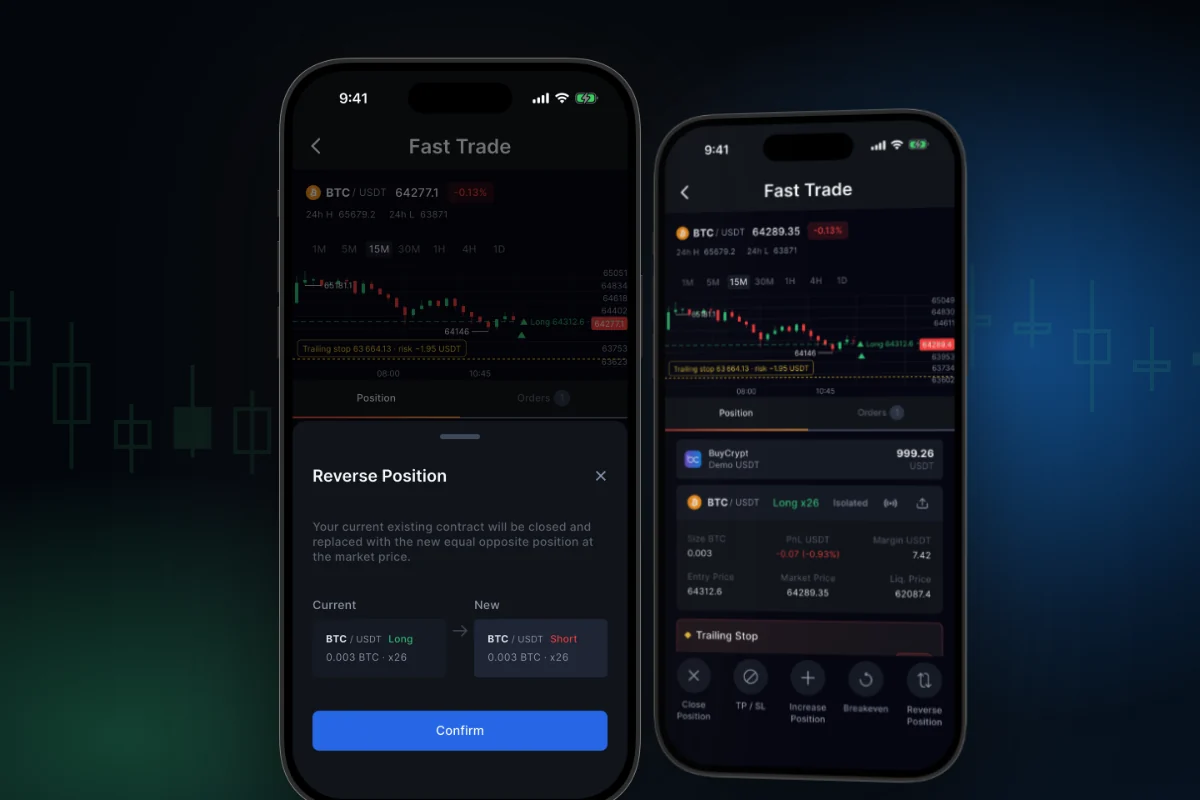
What it is. Reverse Position closes your position and opens an equal one the other way, at the market price. The window shows the current and the new position before you confirm.
Why. You do not close the trade, count the size and build a new order while the market moves.
How to start
- Open Trade, then Positions. Tap the card header. Fast Trade opens.
- Tap Reverse Position.
- Compare the two cards: side, size and leverage.
- Tap Confirm. If there is not enough money for the same size, the window offers a smaller one.
- If even that does not fit, the window says so and leaves the Close Position button.
Where: the app (Fast Trade → Reverse Position) and the web terminal (position row → “⋯”). These are two market orders, with fees and slippage. The button is not shown on prop accounts.
The exit: in parts, with an honest result
See what is left after fees before you confirm
What it is. You close at market or with a limit order, all of it or a part. The result already has the entry and exit fees taken off.
Why. You can take half and leave the rest in the market. You see early when fees eat a small gain.
How to start
- Tap Close on the position card (or Fast Trade → Close Position).
- Choose Market or Limit.
- Tap 25%, 50%, 75% or 100%, or type the amount.
- Check the Result after fees line and tap Confirm.
Where: the app and the web terminal (position row → Close).
A trade receipt: entry, exit and what the fee took
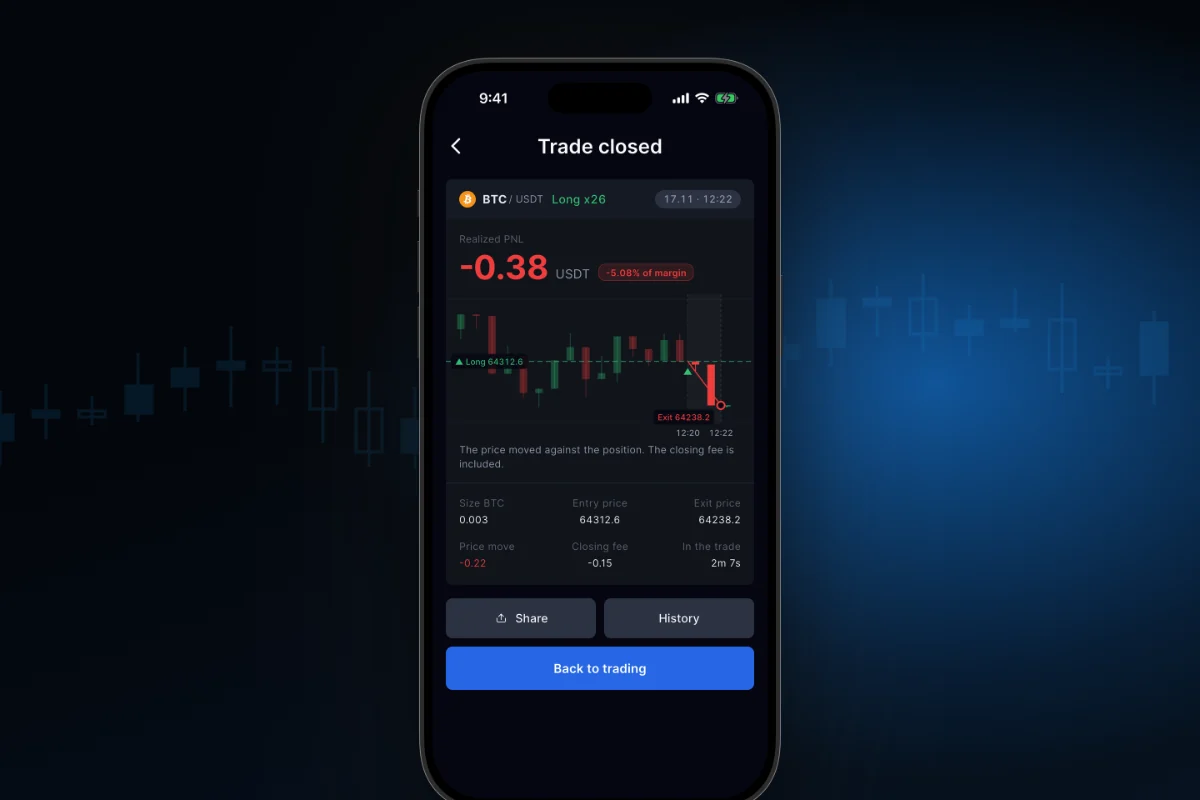
What it is. When you close a position in full, the Trade closed screen opens. It shows the result in money and as a percent of margin, a small chart with your entry and exit, the fee and the time in the trade. One line explains the result in words, for example: the price went your way, but the closing fee was bigger than the move.
Why. You see how the trade ended and why. Maybe the price went your way, but the fee was bigger.
How to start
- Open the position in Fast Trade.
- Tap Close Position, pick 100%, tap Confirm.
- On Trade closed, read Realized PNL, Entry price, Exit price, Price move, Closing fee and In the trade.
- Tap Share to make a picture of the trade: pair, side, leverage, ROE and prices. It has no position size, no result in money, no margin and no balance. The Meme card by ROE switch is in the same window.
- History or Back to trading closes the receipt.
Where: the app and the web terminal. Only after a full close from the Fast Trade screen. A close from the Positions tab gives only a message.
A stop-loss, a Trailing Stop and Breakeven do not guarantee a price. When they fire, a market order is sent, and the trade can close a little worse. The numbers in these windows are estimates.
More changes
- Change an order price without cancelling. Orders → Edit → New price or Trigger Price → Save. Only the price changes. A Trailing Stop cannot be edited: cancel it and set a new one.
- Close all. The button in the account header closes every position of that account at market. The window names the account and the number of positions. If some stay open, tap Retry the rest.
- Share card. A picture of a position or a closed trade: pair, side, leverage, ROE and prices. No money amount. There is a Meme card by ROE switch.
- iPhone only. Show on the Lock Screen puts a position’s PNL on your Lock Screen, up to three positions. The BuyCrypt home screen widget (small and medium) shows Portfolio, Position or Prices for up to six coins. It needs iOS 17 or newer and shows the last snapshot, not live prices.
Good to know
- A Trailing Stop works on futures only and always covers the whole position. It is not connected yet for your own Binance, Bybit, MEXC, WhiteBIT and BingX accounts.
- The stop-moved push does not come for every step. It is confirmed for the demo account.
- You set TP and SL with fields and share buttons. You cannot drag them on the chart.
- Trade closed does not open after a partial close, a stop or a liquidation. Find those results in History.
- Reverse Position is not available on prop accounts. After a loss the new position can be smaller than the old one.
- Demo money is virtual. This is not investment advice. 18+.
Links: trading guide · tournaments · web terminal · download: App Store, Google Play · next: Prizes and money · all chapters.
Discussion
Comments from BuyCrypt Live. Sign in with Google or Apple — we create your BuyCrypt account on the way, the same one as in the app.