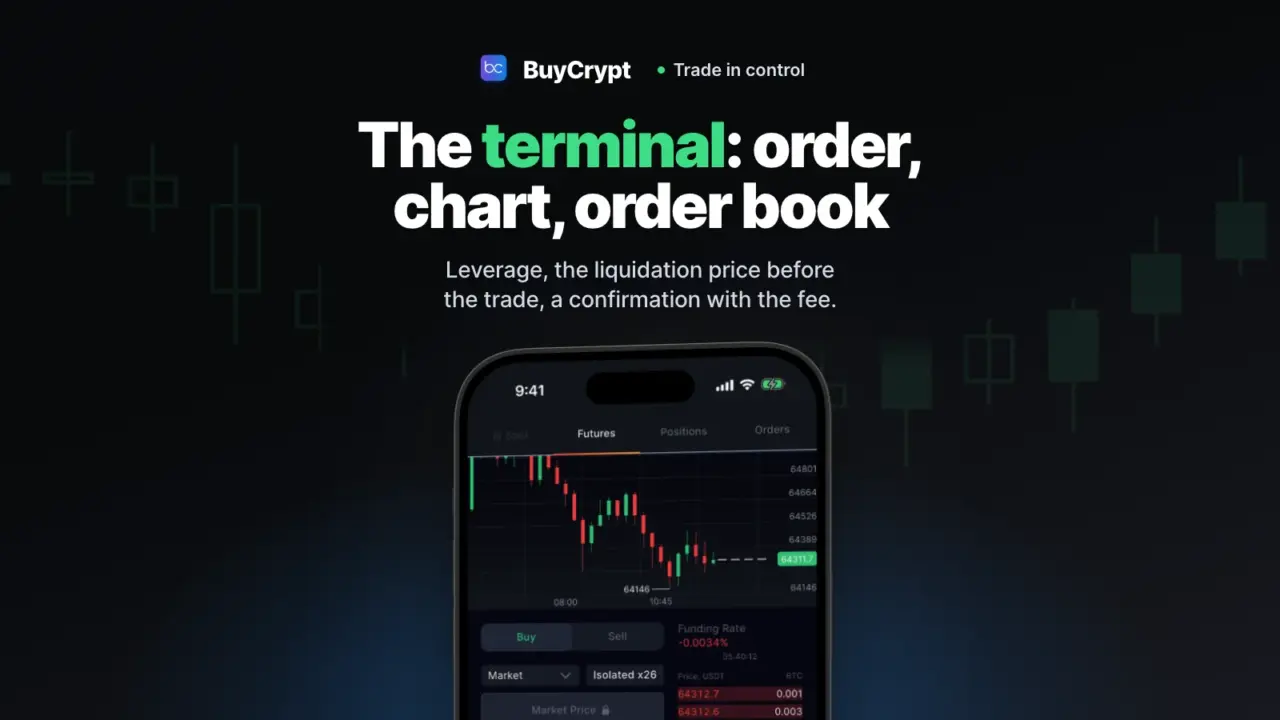
Before every trade you see three things: the money it takes, the price where liquidation would close it, and the fee. All on one screen, before you tap Buy.
Practise on the demo account. It has virtual USDT and live exchange prices, with leverage, fees and liquidation. It is a simulation: trades do not go to an exchange. Demo trades futures only. New here? Start with the first chapter.
Enter now, at your price, or from a level
You choose when to enter and at what price
What it is. The form has four order types: Market, Limit, Stop Market and Stop Limit. Futures also have a Reduce only option.
Why. Enter at once, wait for your price, or set an entry that fires only at a level.
How to start
- Open Trade, then Futures.
- Tap the order type list at the top left of the form. Pick a type.
- Fill in Price for limit types and Stop for stop types. Type the amount.
- Tap Buy BTC or Sell BTC.
Where: the app and the web terminal (the form on the right). On some exchanges and pairs the list of types is shorter.
Set leverage and margin before the trade
With high leverage you see what price move closes the position
What it is. The Mode and Leverage window sets your leverage and the margin mode: Isolated or Cross.
Why. Above x20 the window says it plainly: “At x50 a price move of about 2% liquidates the position”.
How to start
- In the form, tap the chip next to the order type, for example “Cross x20”.
- Choose Isolated or Cross.
- Set the leverage with the slider, the −/+ buttons or a number.
- Tap Confirm, then agree in the “Change leverage and margin?” window.
Where: the app and the web terminal. Each pair has its own maximum leverage. On demo you can change the margin mode only with no open positions and orders.
High leverage makes losses bigger too, not only gains. A new account starts at x20. The first trade lesson sets x5.
See the liquidation price before you tap Buy
You see the risk early, and it updates as you type
What it is. Under the form there is a Liquidation price line with a “≈” sign. It is the rough price where your position would be force-closed. Next to it: Order value and Margin. The estimate counts a position you already have on this pair.
Why. Change the amount or the leverage and the number changes. Pick a size that keeps liquidation far away.
How to start
- In the form, set the leverage. Type the amount or move the slider.
- Read the Order value, Margin and Liquidation price lines.
- Margin is red and says “Not enough margin”? Lower the amount or the leverage.
- Tap Buy BTC. The same line is in the confirmation window.
Where: the app (on all exchanges) and the web terminal, on demo and on connected exchanges. The same line is in the confirmation window and in the Increase Position window.
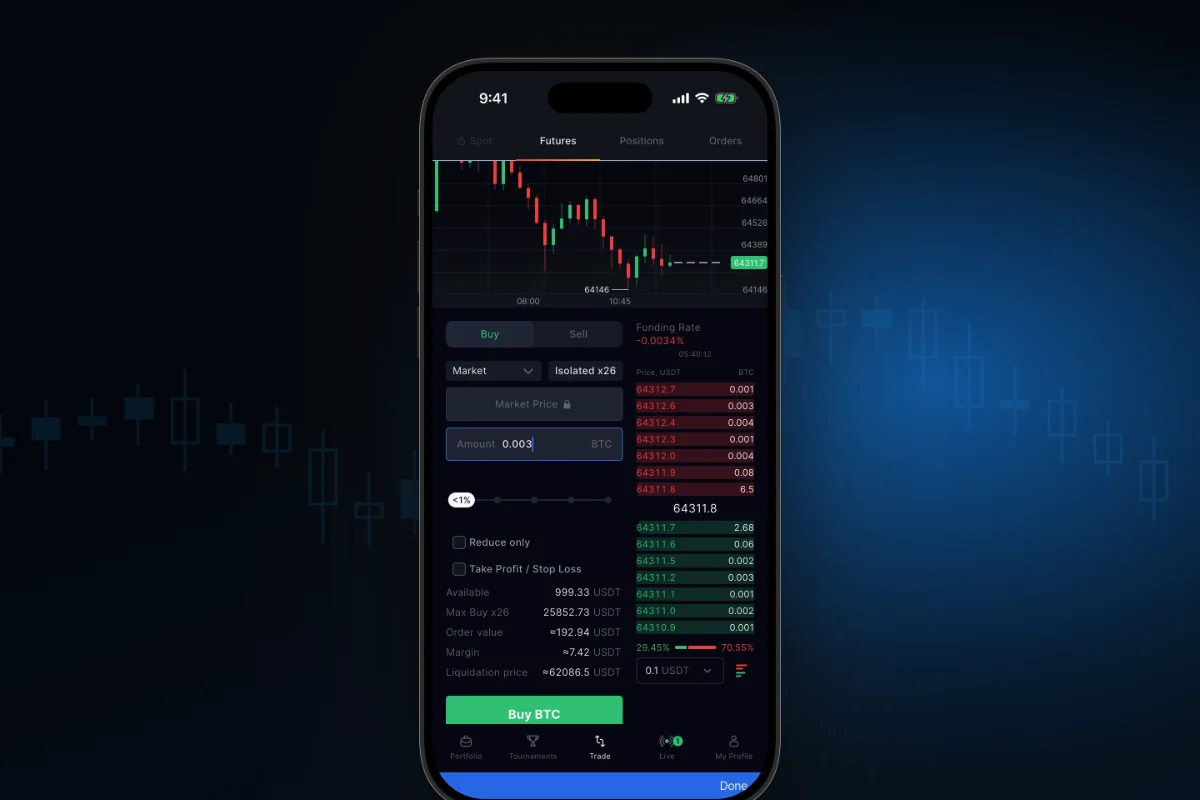
This is an estimate, not an exact price. The exchange can count it differently, most of all in cross margin. The line shows the level. It does not protect you. There is no liquidation line on the chart. For protection use a stop-loss: you can set it at entry.
One last check before you send
The whole trade in one window, with the fee
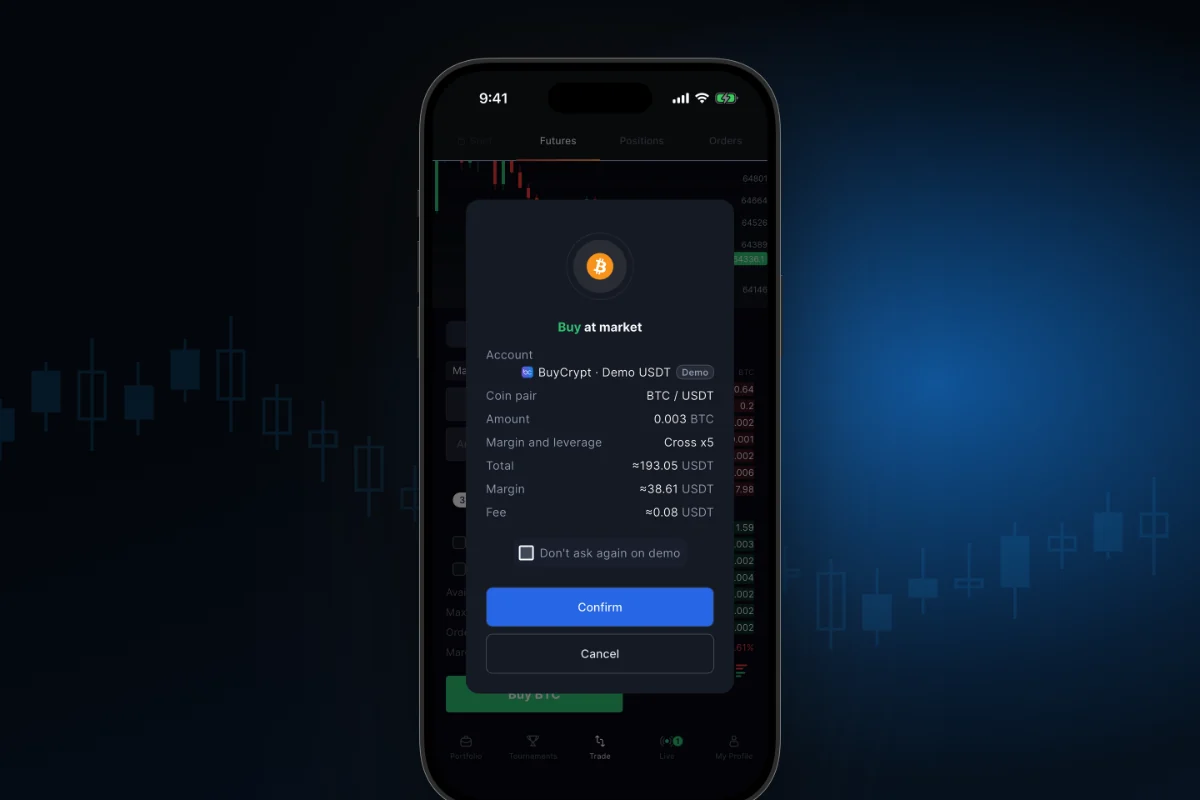
What it is. Before the order goes out, a window shows the account, mode and leverage, pair, amount, margin, order value, liquidation price and a fee estimate.
Why. Fewer mistakes, like a trade on the wrong account.
How to start
- Fill in the form and tap Buy BTC or Sell BTC.
- Check the account, leverage, amount, liquidation price and the Fee line.
- Tap Confirm.
- On demo you can tick “Don’t ask again on demo”. New demo orders then go out at once.
Where: the app and the web terminal. On real accounts you cannot turn the confirmation off.
Set a stop and a target at entry
The position opens with protection
What it is. In the form of a new futures order you can set a take-profit price and a stop-loss price at once.
Why. The position is never left without a stop.
How to start
- Pick the Market type and type the amount.
- Tick Take Profit / Stop Loss.
- Type prices in the Take Profit and Stop Loss fields.
- Tap Buy BTC. The confirmation shows the TP and SL lines.
- After entry, the position card shows a “TP / SL · n” strip.
Where: the app and the web terminal. On demo, Gate, SunX and Hyperliquid, TP/SL go out with the order. On your own Binance, Bybit and MEXC accounts this works for market entries only.
A stop-loss does not guarantee a price. When it fires, a market order is sent. How to protect a part of a position, and what to do with the stop next: see the position control chapter.
Order book: set the price with one tap
See where the orders are and how long until funding
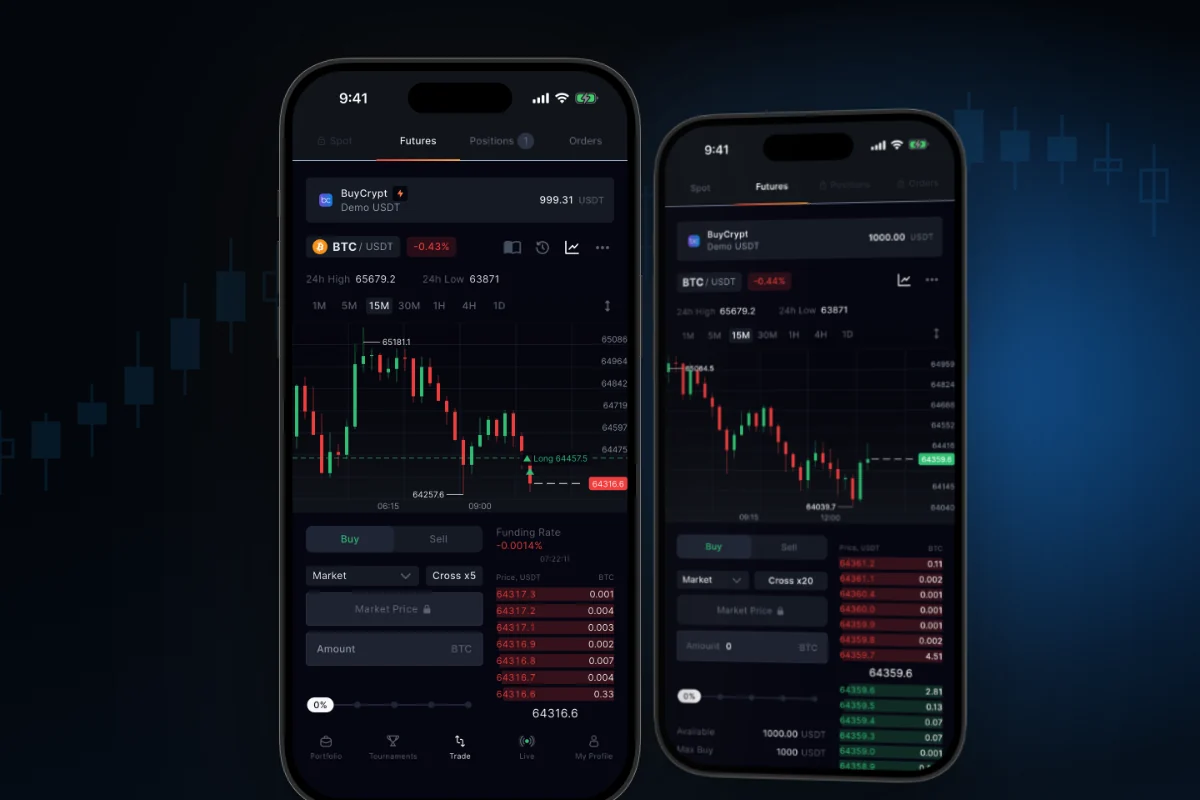
What it is. The order book is next to the form: 7 sell levels and 7 buy levels. On top are the Funding Rate and a timer to the next funding.
Why. You set a limit price with a tap.
How to start
- Open Trade, then Futures. The order book is in the right column.
- Tap the step button, for example “0.1 USDT ▾”. In the Order book price step window pick a bigger step.
- Pick the Limit type and tap a level. The price goes into the Price field.
- Above the book, read the Funding Rate and the countdown to the next funding.
Where: the app and the web terminal. There is no trade feed.
The chart: BuyCrypt or TradingView
Your entry is on the candles, and TradingView tools are next to the order
What it is. The BuyCrypt chart is the default. It has 7 timeframes, from 1m to 1d, and a dashed line at your entry price marked Long or Short. In the settings you can switch to TradingView with its indicators and drawing tools.
Why. One chart shows where you entered. The other has the tools you already know.
How to start
- Tap the gear icon in the pair row. The Settings window opens.
- In the Chart section choose TradingView or BuyCrypt.
- For the BuyCrypt chart, turn on Volumes, MA, EMA or MACD in the same place.
- Close the window. Your choice is saved for all pairs.
- The ↕ button opens the Height slider.
Where: the app and the web terminal. On the web the BuyCrypt / TV switch is right above the chart.
More changes
- You see the minimum order early. If the amount is too small, a “Minimum order: …” line shows under the field, with a Use minimum link.
- Amount slider. It moves in 5% steps. Scrolling the screen does not change your amount.
- Three more small things this week. Close all, a position on the Lock Screen and iPhone widgets are in the position control chapter.
Good to know
- The BuyCrypt chart has no TP, SL, liquidation or order lines. You cannot drag levels. Drawing tools are only in TradingView.
- TradingView here is a public widget. It does not show your entry or save your drawings. On demo its prices can differ a little from your account prices.
- A tap in the order book fills the price only for Limit and Stop Limit orders.
- On real accounts the exchange takes the fee.
- Demo money is virtual. This is a guide to the tools, not investment advice. 18+.
Links: trading guide · demo account · tournaments · web terminal · download: App Store, Google Play · next: Position control · all chapters.
Discussion
Comments from BuyCrypt Live. Sign in with Google or Apple — we create your BuyCrypt account on the way, the same one as in the app.