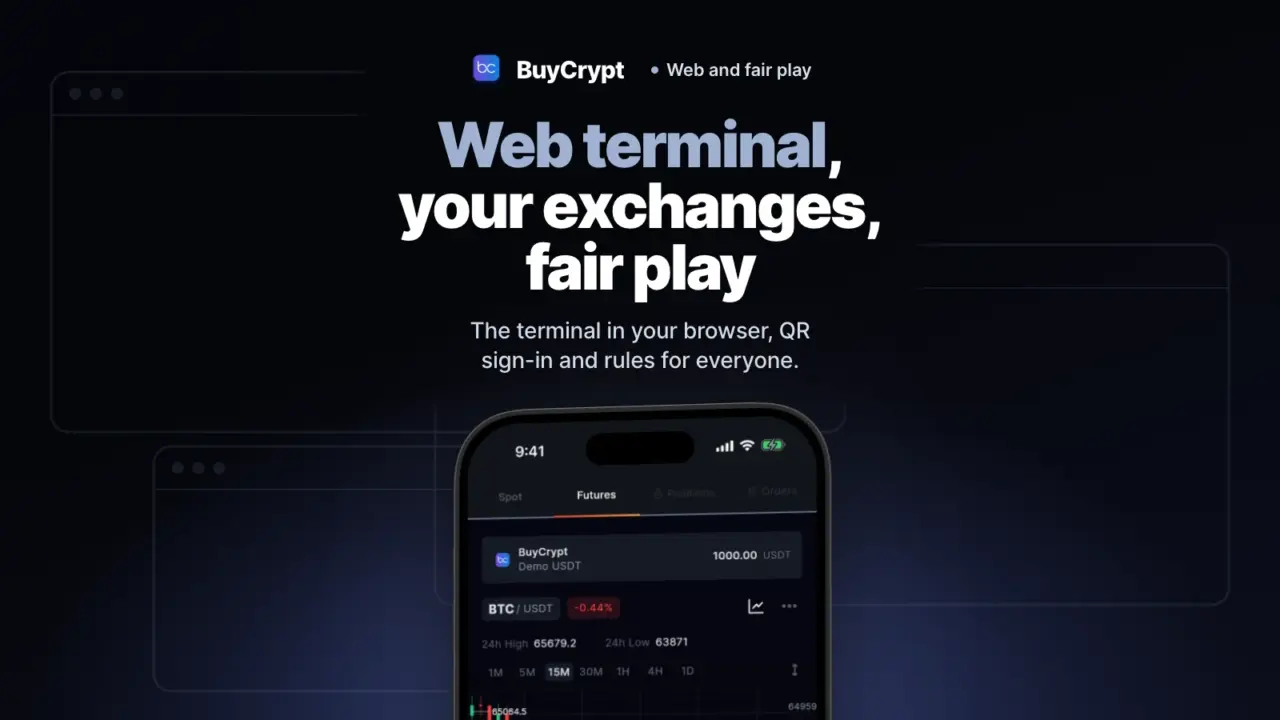
You trade and play tournaments in a browser. You see your exchange accounts in one window, and the key needs no withdrawal right.
The fair play rules are at the end. They decide who gets the prizes.
The terminal in your browser
A big chart and tournaments with no app to install
What it is. The web terminal is BuyCrypt in a browser at buycrypt.com/terminal/. It has the same five sections as the app. On a wide screen a menu appears on the left.
Why. New features come here before they reach the app stores.
How to start
- Open buycrypt.com/terminal/.
- Sign in with Google, Apple or a QR code from the app.
- Pick Portfolio, Tournaments, Trade, Live or My Profile in the left menu.
- To share a screen, copy the address from the browser bar.
Where: any browser. The left menu and the light theme need a window of 1024 px or wider. On a phone the terminal looks like the app.
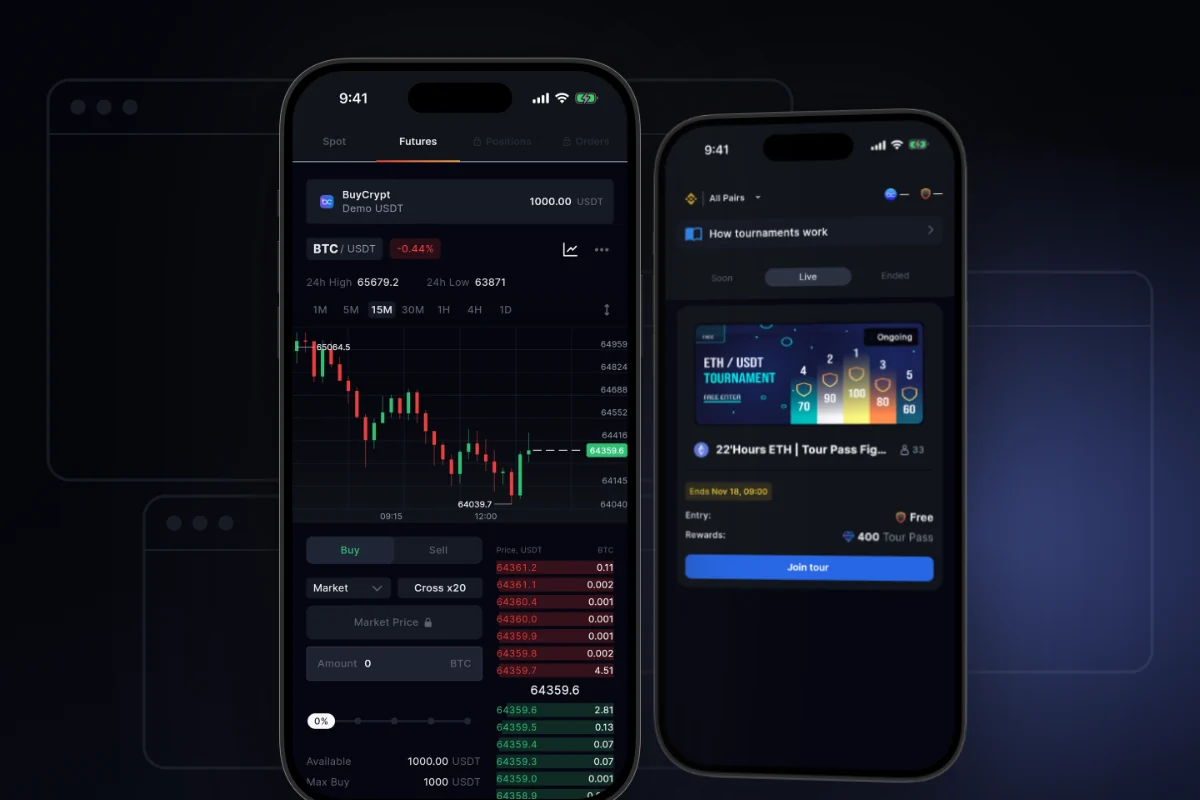
Sign in on the site, and the terminal knows you
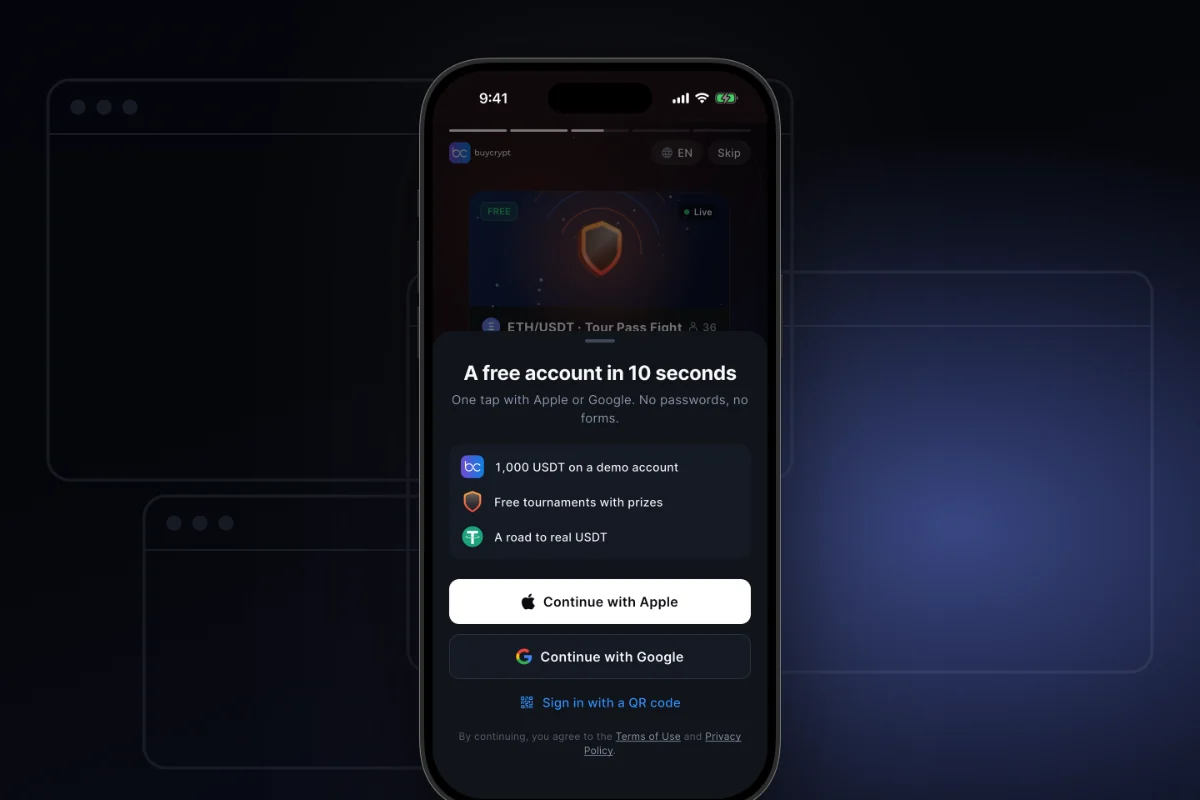
What it is. The site and the web terminal share one sign-in. Before it starts, the terminal asks: continue as this account, or use another one.
Why. You do not sign in twice. You always see which account opens.
How to start
- On the site, sign in with Google, Apple or a QR code from the app.
- Open the menu under your avatar and pick Web terminal.
- On the start screen, tap Continue or choose another account.
Where: the site and the web terminal only. Signing out in the terminal also signs you out on the site.
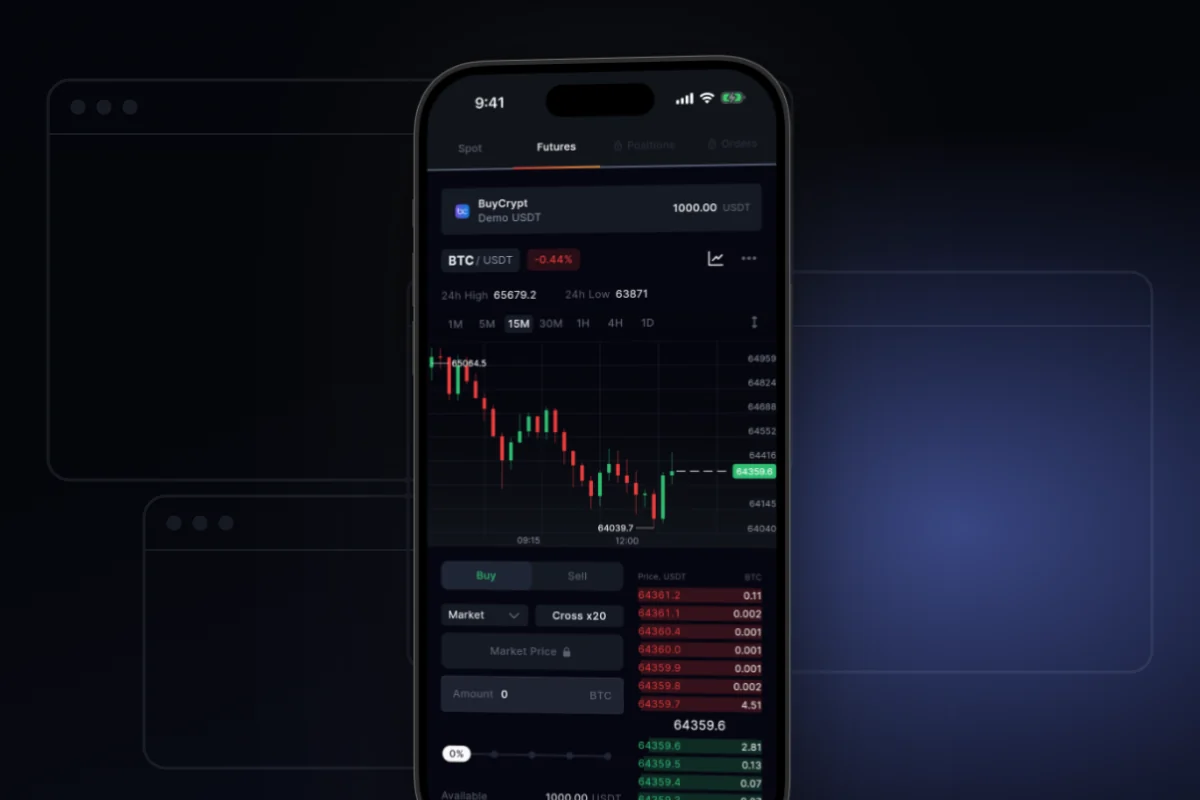
No password on a shared computer: point your phone
What it is. The browser shows a QR code. The app scans it, and you approve the sign-in on your phone.
Why. You type no Google or Apple details on a work computer. You can end a session from your phone.
How to start
- In the browser at buycrypt.com/terminal/, choose “Sign in with a QR code”.
- In the app, open Portfolio and tap the QR icon at the top.
- Point the camera. Check the device, the IP address and the browser.
- Tap Authorize. The browser opens the terminal by itself. The code works for 5 minutes. If it expires, ask for a new code.
- To end a session: My Profile → Sessions → Active sessions. The browser signs out by itself.
Where: the app and the web terminal. The list shows only browser sign-ins made by QR. Sign-ins with Google and Apple are not in it. This is not two-factor protection.
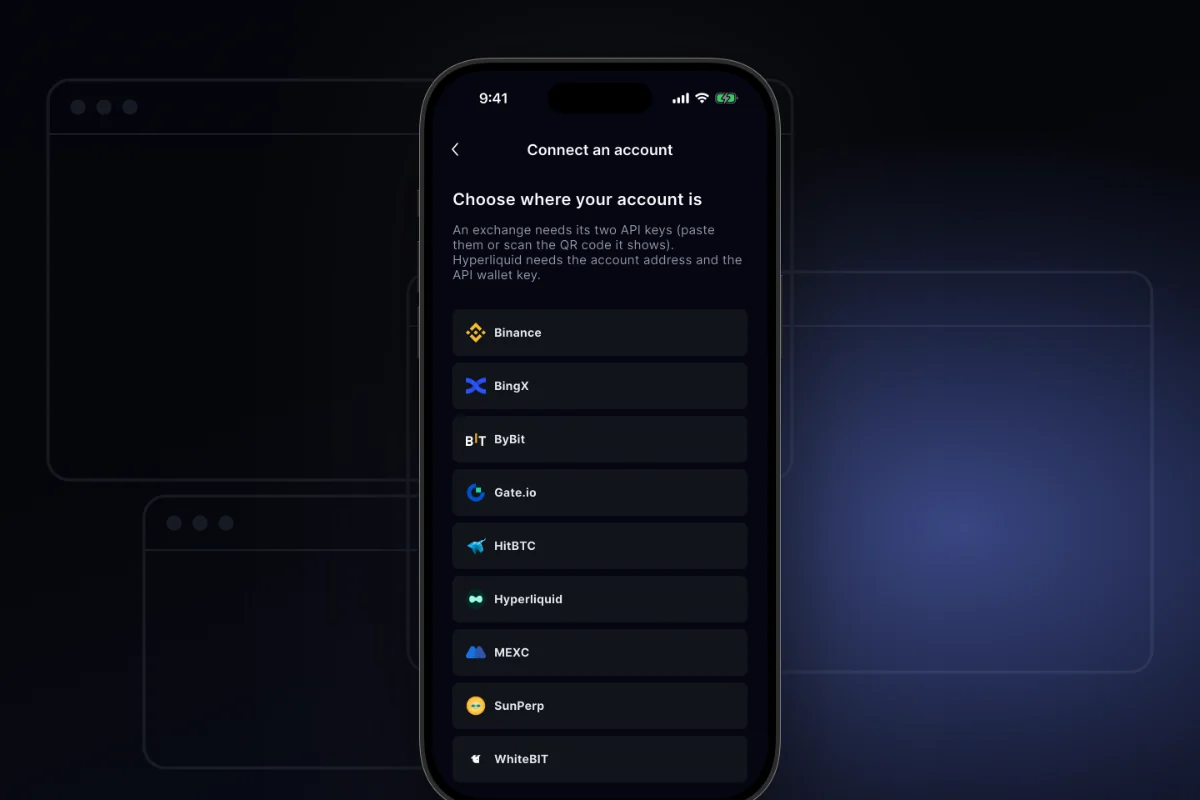
Your exchanges in one window
Your money stays on the exchange. You trade from BuyCrypt
What it is. You connect your exchange account with an API key. Then you see it in Portfolio, and your orders go to your exchange. The exchange fills them, not BuyCrypt.
Why. Several exchanges and accounts in one app: Binance, Bybit, Gate, MEXC and others.
How to start
- Open Portfolio and tap “+”.
- On the Connect an account screen, pick your exchange.
- Open Connection guides. Create a key on the exchange: futures trading on, withdrawal off.
- Fill in Account name, API key and Secret key.
- Tap Connect account, then Proceed to Portfolio.
Where: the app and the web terminal (Connect an exchange). The list of exchanges comes from the server and can differ.
Create a key with no withdrawal right. Nobody can withdraw money from your exchange with such a key. Support never asks for a seed phrase, passwords or keys that can withdraw.
Your own Hyperliquid account: the key trades but cannot withdraw
What it is. You connect Hyperliquid with your account address and the key of a separate API wallet. It settles in USDC. The form does not accept the key of your main wallet.
Why. The API wallet can only trade. Your money stays on your Hyperliquid account.
How to start
- Portfolio → “+” → Hyperliquid.
- No account yet? Open the help block on the form and follow the steps.
- Type the Account address and the API wallet private key. Tick the country confirmation.
- Tap Connect account.
Where: the app and the web terminal, if Hyperliquid is in your list. Not for people in the USA, Ontario or sanctioned territories.
For people who write code
Ask your AI assistant about tournaments and demo trades
What it is. The BuyCrypt MCP server connects to AI assistants such as Claude, ChatGPT and Cursor at buycrypt.com/mcp. The assistant sees tournaments, leaderboards, trader profiles and prices. It is read-only.
Why. You ask in plain words: “Which tournaments are running?” The answer uses live data.
How to start
- Open buycrypt.com/bots and find the AI assistant section.
- Add the server https://buycrypt.com/mcp in your assistant.
- Six tools work with no key.
- To show your demo account, create a read-only key: My Profile → API keys → the demo account → Bot API keys. Pass it in the headers.
Where: the site. The “Generate read-only key (for MCP)” button is in app 3.9.7 and in the web terminal. ChatGPT cannot pass keys, so it does not see your demo account.
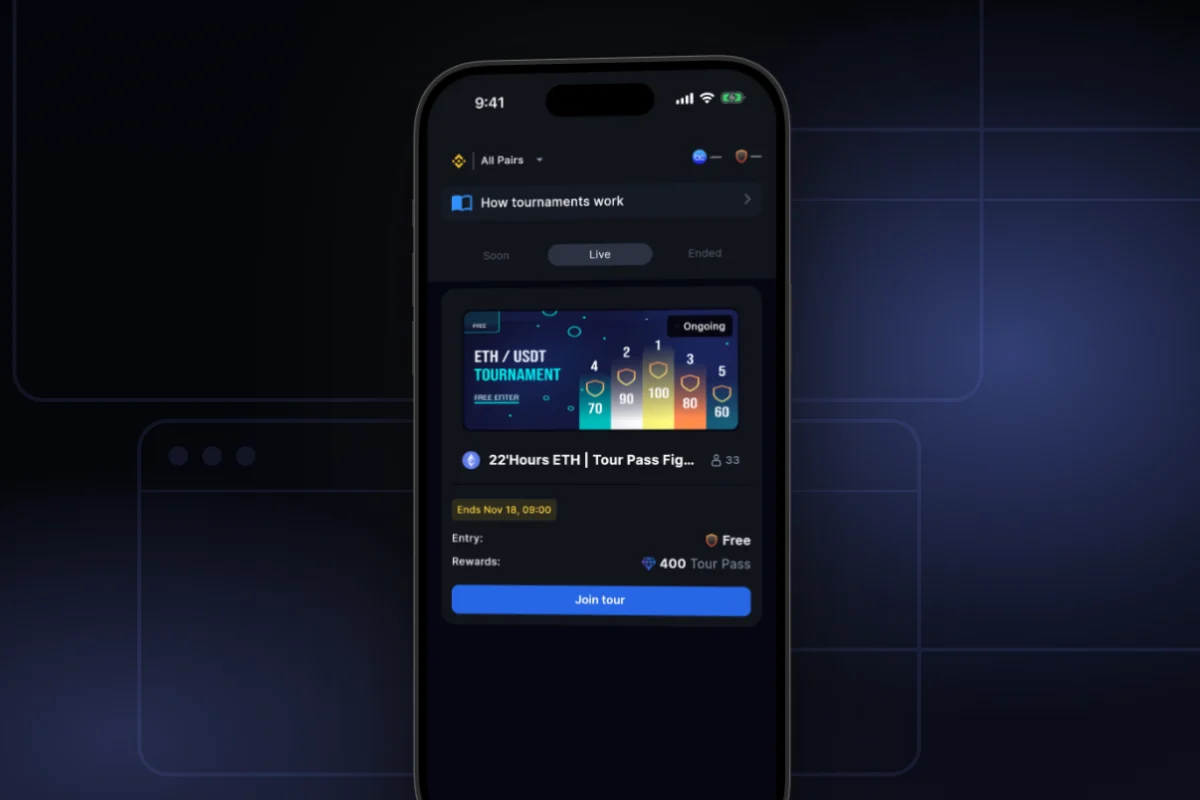
Fair play
Prizes go to people who play with one account
What it is. The Terms prohibit creating or using several accounts (clause 15.1). For accounts found to be multi-accounts, withdrawals are closed. Their prizes stay on the BuyCrypt balance (clause 8.8).
Why. You compete with people. Nobody takes several places in the table.
How to start
- Play with one account. That is all you need to do.
- If withdrawal is closed, the web terminal shows the “Withdrawal is closed” box and the “Rules, clause 15.1” link.
- If you think it is a mistake, tap Write to support.
Where: the check works for everyone. The “Withdrawal is closed” box is in app 3.9.7 and in the web terminal. Older app versions show a refusal and a notification.
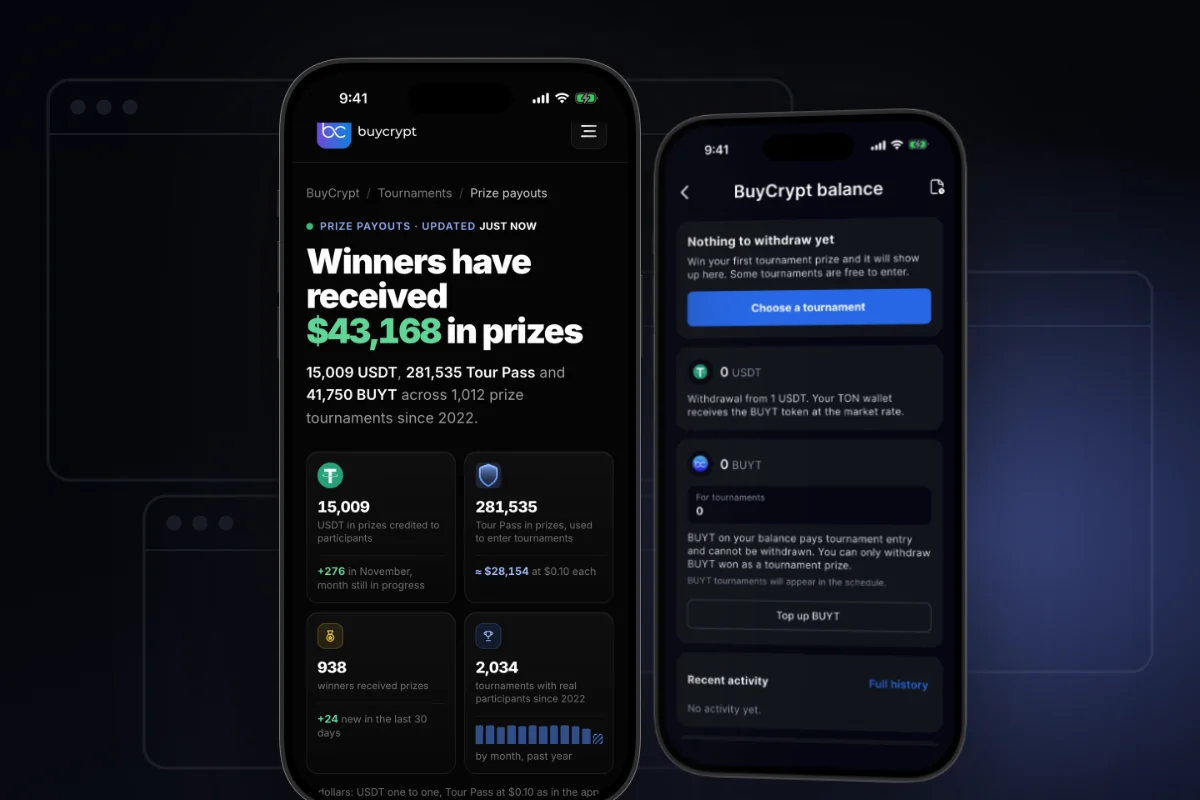
There are no bots in tournaments: we removed all of them, only real people take part now.
Prizes are credited in USDT and paid out in the BUYT token at the market rate, from 1 USDT. We promise no time for a review of a closed withdrawal. Apple and Google are not sponsors of the tournaments.
More changes
- Open in Safari / Chrome. Google and Apple sign-in does not work inside Telegram, Instagram or TikTok. A strip at the top opens the page in a normal browser.
- Join from a tournament page. After sign-in you land in that tournament, not in the general list.
- Report and Block author. Use “⋯” in a trader profile and “•••” on a Live comment. One of the reasons is Scam links.
- Confirmations before money moves. Before a withdrawal, a payment in BUYT, a transfer or closing all positions, the window names the account and the action. A real account has the line “Real account: real money.”
- API keys. You see the state of every key. Deleting an account in BuyCrypt does not revoke the key on the exchange.
- Bot API keys. Your program can trade on the demo account. The interface is compatible with Binance USD-M Futures: only the address changes. Such an account gets a 🤖 badge in the rating.
- Price alerts. My Profile → Activity and alerts → New alert: Target Price or Price Change, %. An alert reports a price move. It is not advice.
- Bitcoin price change alerts. My Profile → Settings → Notifications. The step is 100, 200, 500 or 1000 USDT.
- Support in Telegram. My Profile → Support → Open Telegram chat, or go to the chat. We answer in English and Russian. For a withdrawal question, send your User ID. We promise no answer time.
Good to know
- There is no sign-in with an email and a password: only Google, Apple or a QR code from the app.
- The browser has no notifications and no widgets. Price alerts come only to the app on your phone.
- BuyCrypt does not deposit to or withdraw from Hyperliquid. The minimum order there is 10 USDC.
- MCP cannot trade, join tournaments or move money. Bot keys and read-only keys are for the demo account only.
- The Terms (clause 15.1) prohibit a trading program in a tournament where its rules do not allow it.
- BuyCrypt is a learning platform, not an exchange. Trading on your own exchange account uses real money and can bring a loss. 18+.
Links: web terminal · security · Terms of Use · for developers · support · download: App Store, Google Play · next: Capital: real accounts for the best traders · all chapters.
Discussion
Comments from BuyCrypt Live. Sign in with Google or Apple — we create your BuyCrypt account on the way, the same one as in the app.